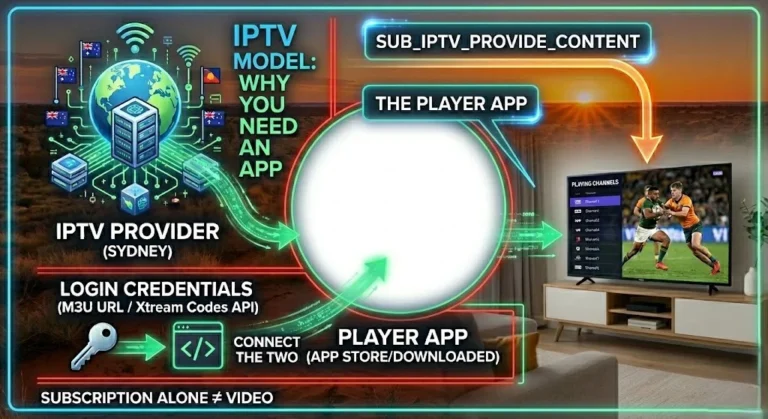
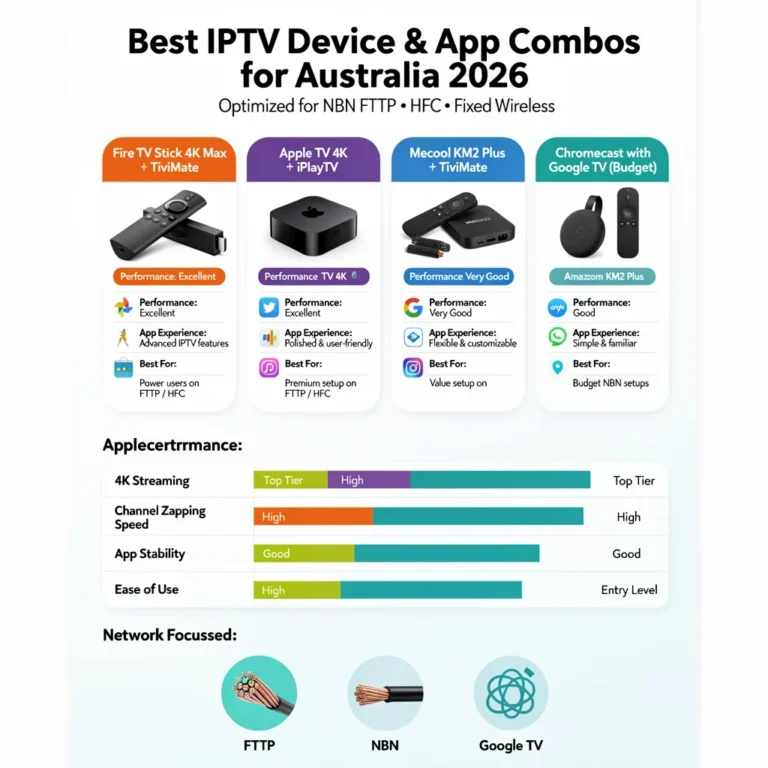
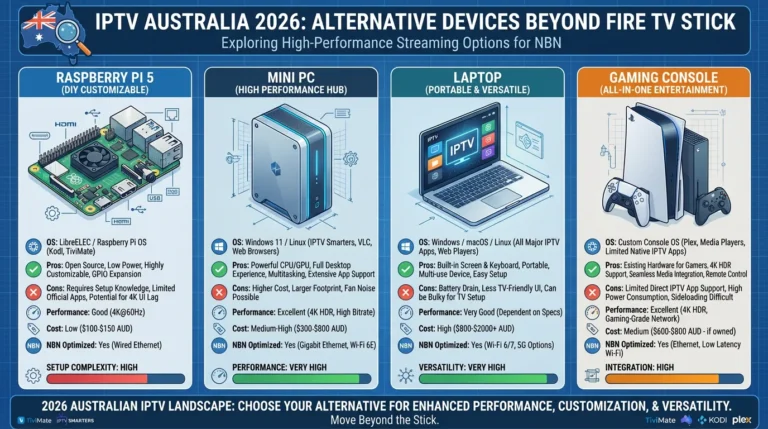
Most Australian IPTV subscribers use 20% of their app’s capabilities and miss out on features that would transform their daily viewing experience, such as personalised recommendations, advanced search options, and multi-device support.
The IPTV app tips in this guide cover TiviMate and IPTV Smarters Pro—the two most widely used IPTV apps in Australia—with practical configuration steps that make navigating hundreds of channels, finding Australian sport, and accessing catch-up TV faster and easier.
This guide is part of the complete IPTV Devices & Apps Australia hub and assumes you already have a working IPTV setup—this is about getting more from what you have.
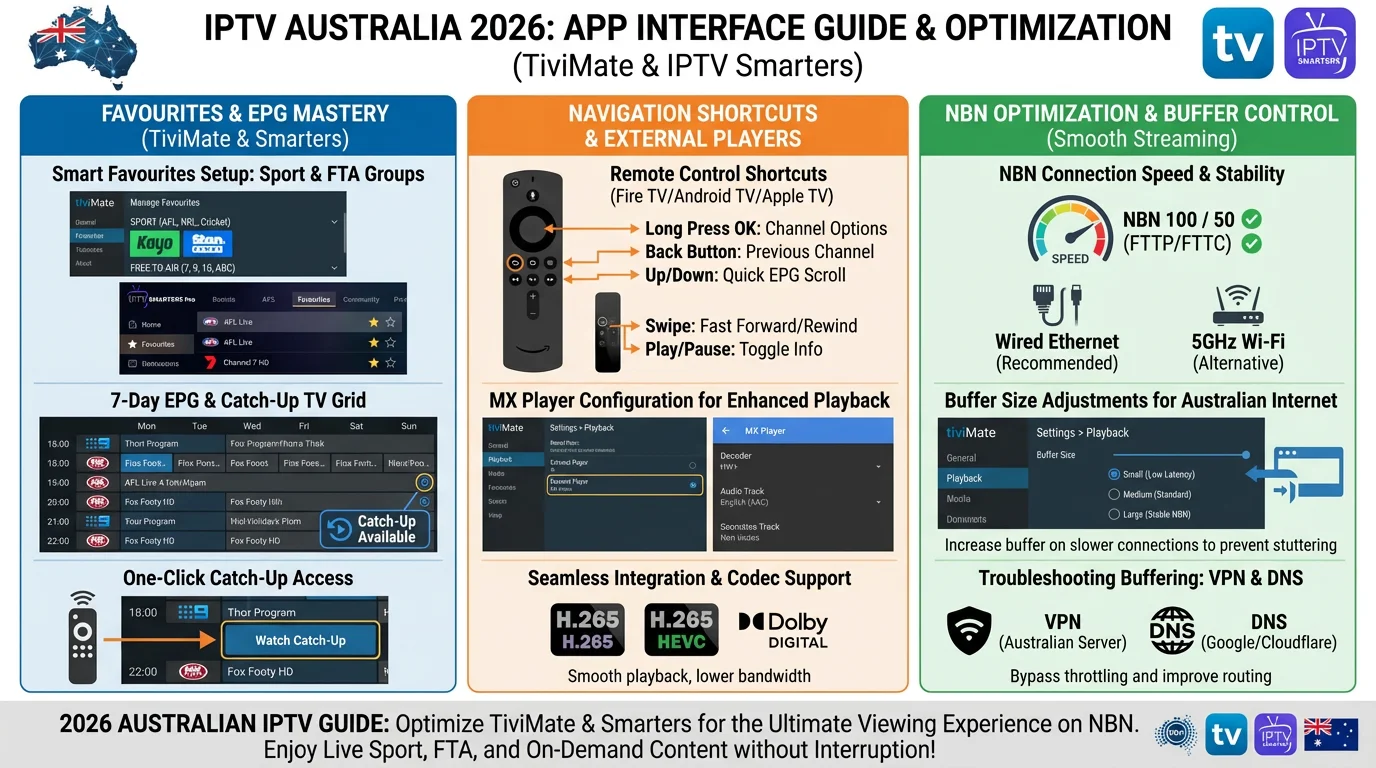
The features most Australian viewers do not know they have are TiviMate Favourites groups that organise channels by category, one-tap catch-up TV from the EPG (Electronic Program Guide) grid, remote shortcuts that eliminate menu navigation, and EPG timezone settings that show correct Australian times. This guide covers all of them.
IPTV app interface tips refer to configuration, navigation, and usage techniques that improve the user experience of IPTV player applications — specifically TiviMate and IPTV Smarters Pro — on Australian streaming devices.
Key features include: favourite groups (user-created channel category lists), EPG grid navigation (scrolling the 7-day program guide by time and channel), catch-up TV access (watching past programs from the EPG), remote control shortcuts (direct access features without menu navigation), stream quality, player settings, and parental controls.
Correctly configured, these features reduce channel navigation time and improve the overall viewing experience on Australian NBN IPTV setups.
Quick Wins — Do These First
| Tip | App | Time | Impact |
|---|---|---|---|
| Set EPG timezone to +10/+11 | Both | 30 sec | High — correct programme times |
| Create Australian Sport Favourites group | TiviMate | 3 min | High — instant sport access |
| Set MX Player as external player | TiviMate | 1 min | High — fixes H.265 issues |
| Enable catch-up TV in EPG | TiviMate | 1 min | High — watch past matches |
| Set start with last channel | TiviMate | 30 sec | Medium — resumes last channel |
| Enable channel number navigation | TiviMate | 30 sec | Medium — type channel number |
| Set stream buffer size | IPTV Smarters | 1 min | Medium — reduces buffering |
Table of Contents
- TiviMate — EPG Setup and Navigation Tips
- TiviMate — Favourites Groups Setup
- TiviMate — Remote Control Shortcuts
- TiviMate — Catch-Up TV Tips
- TiviMate — Player and Stream Settings
- IPTV Smarters — EPG and Timezone Tips
- IPTV Smarters — Playlist and Stream Settings
- IPTV Smarters — Interface Navigation Tips
- Tips for Australian Content — Sport, News, Free-to-Air
- Parental Controls on IPTV Apps
- Resolution Summary
- FAQ
1. TiviMate — EPG Setup and Navigation Tips
The EPG (Electronic Programme Guide) is TiviMate’s strongest feature — and most Australian users only use a fraction of its capability, often missing out on advanced features like personalised channel recommendations and customisable viewing schedules.
Correct Timezone Configuration
Settings → EPG → EPG Time Offset:
- +10:00 — AEST (QLD year-round; other states April–October)
- +11:00 — AEDT (NSW, VIC, ACT, TAS, SA October–April)
Without this, every programme is 10 hours off. This is the single most important EPG setting.
EPG Grid Navigation
The TiviMate EPG grid is navigated with the Fire TV remote:
- Left/Right arrows: Move backward/forward in time (30-minute increments)
- Up/Down arrows: Scroll through channels
- Long press Left: Jump to current time from any position
- Red button (or Menu): Filter channels — show only Favourites group in EPG view
- Select on a future programme: Set a reminder
- Select on a past programme: Open catch-up TV (if available)
EPG Days — Reduce for Storage Management
TiviMate stores 7 days of EPG data by default — approximately 1–3GB depending on the provider. On devices with 8GB storage (Chromecast with Google TV, Xiaomi Mi Box S), reduce this: Settings → EPG → EPG Days → 3
Three days of EPG data cover all practical catch-ups and upcoming program planning needs, ensuring that users can easily access the most relevant content without overwhelming their devices’ limited storage.
Filtering EPG to Current Favourites Group
When browsing the EPG, press the Menu button (three horizontal lines) on the Fire TV remote while in EPG view, then select the current Favourites group. The EPG then shows only channels in that group—far less scrolling to find Australian sports channels within a large provider list.
2. TiviMate — Favourites Groups Setup
Favourite groups are TiviMate’s most underused feature. Instead of scrolling through hundreds of provider channels to find Nine Network or Fox Sports, create a Favourites group with 15–30 channels and switch to it instantly.
Creating a Favourites Group
- TiviMate main screen → Favourites tab → Add Group
- Name the group (e.g., “AU Sport”, “AU Free to Air”, “News”, “Kids”)
- Open the group → Add Channels
- Search by channel name → select → Add
Recommended Favourites Groups for Australian Viewers
AU Free to Air: Nine, 9Gem, 9Life, 9Rush, Seven, 7Two, 7mate, 7flix, Ten, 10Bold, 10Peach, ABC, ABC2, ABC Kids, SBS, SBS Viceland, NITV
AU Sport: Fox Sports 1, Fox Sports 2, Fox Sports 3, Fox Sports 4, Fox Footy, Fox League, ESPN, ESPN2, beIN Sports (available channels), Sky Racing
News: Sky News Australia, ABC News 24, Al Jazeera, BBC World News, CNN, Fox News
International: BBC One, BBC Two, ITV, Channel 4, Sky Atlantic (UK), any international channels relevant to your household
Switching Between Favourites Groups
While watching any channel, press Up on the Fire TV remote → the channel list appears → press the Left arrow → the Favourites group selector appears → navigate to the desired group → press Select.
Or: While in the EPG, press Menu → Filter → select group.
Reordering Channels Within a Favourites Group
Favourites tab → select group → long-press on a channel → Move Up/Move Down → arrange in preferred order. Most Australian viewers put their most-watched channels at the top of each group for immediate access.
3. TiviMate — Remote Control Shortcuts
These shortcuts work on the Fire TV Stick remote — learn them and eliminate most menu navigation:
| Action | Shortcut |
|---|---|
| Open channel list | Up arrow while watching |
| Open EPG guide | Down arrow while watching |
| Previous channel | Long press Back |
| Open player controls | Select (OK) while watching |
| Jump to current time in EPG | Long press Left in EPG |
| Switch Favourites group | Left arrow in channel list |
| Open catch-up TV | Select a past programme in EPG |
| Set reminder for future show | Select a future programme in EPG |
| Channel number entry | Type numbers on remote while watching |
| Toggle info bar | Select while watching (brief press) |
Enable channel number navigation: Settings → General → Channel Number Navigation → ON. After enabling, type any channel number on the remote while watching—TiviMate switches to that channel after a 2-second delay. This feature is crucial for swiftly transitioning between numbered channels without the need for scrolling.
Set start with last channel: Settings → General → Start with Last Channel → ON TiviMate opens directly to the last channel watched rather than the channel list. This feature eliminates the need for navigation upon each app launch.
4. TiviMate — Catch-Up TV Tips
Catch-up TV is TiviMate’s most powerful feature for Australian sport viewers — it allows you to watch any match that aired in the past 24–72 hours directly from the Electronic Program Guide (EPG) grid.
Accessing Catch-Up TV
- Open EPG guide (Down arrow while watching, or EPG tab)
- Navigate to the channel and time of the programme you want
- Past programmes with catch-up available show a recording/clock icon
- Press Select on the programme → Watch from Beginning option appears
- The stream starts from the beginning of the recorded programme
Catch-Up Availability
Catch-up TV availability depends entirely on your IPTV provider — not TiviMate. If your provider includes catch-up, TiviMate displays it automatically. If catch-up icons do not appear in the EPG, your provider excludes this feature.
Check catch-up availability: Contact your provider and ask if catch-up TV is included in your subscription.
TiviMate Premium for Catch-Up Recording
TiviMate Premium (approximately AU$10/year) adds the ability to record catch-up streams as local files saved to USB storage connected to your Fire TV Stick or Android box. This allows watching recorded IPTV content offline.
To enable this feature, go to Settings → Recording and set the storage location to either a USB drive or network storage.
5. TiviMate — Player and Stream Settings
Set MX Player as External Player (Critical)
Settings → Player → External Player → MX Player
Install MX Player from the Amazon App Store if not present. This routes all streams through MX Player’s hardware decoder—it eliminates the black screen on H.265 channels and improves playback stability on all streams.
Buffer Size
Settings → Player → Buffer Size:
- Default (5 seconds): Suitable for FTTP and stable HFC NBN connections
- 10–15 seconds: Better for HFC NBN peak hours or Fixed Wireless — absorbs brief throughput drops without visible buffering
Increasing buffer size adds 5–10 seconds to channel switch time but significantly reduces buffering events on congested connections.
Stream Type Selection
If a channel plays poorly, try switching stream type: while watching, select ‘→ Stream Type’ and toggle between HLS (HTTP Live Streaming), MPEG-TS (MPEG Transport Stream), and Auto.
- HLS: More compatible, forces H.264 on providers that offer both codecs — useful for devices with H.265 issues
- MPEG-TS: Lower latency, better for live sport — recommended for H.265-capable devices
- Auto: TiviMate selects — usually correct
Hardware Acceleration
Settings → Player → Hardware Acceleration → ON ensures hardware decode is used for all supported codecs. It should be enabled by default — confirm it is on.
6. IPTV Smarters — EPG and Timezone Tips
EPG Timezone Fix
Settings → Player Settings → EPG Shift:
- +10 AEST
- +11 AEDT (daylight saving, October–April)
Without this, the IPTV Smarters program guide shows UTC times—10 hours wrong for Australian Eastern Time viewers.
Enabling EPG in IPTV Smarters
If the program guide shows “no data”,
- Go to Add User → edit your existing playlist
- Confirm EPG URL field — some providers include EPG in the Xtream Codes response automatically
- If EPG URL is blank, ask your provider for the XMLTV EPG URL and paste it in this field
- Save and reload playlist
Switching EPG View in IPTV Smarters
IPTV Smarters shows EPG in list format by default. To access the grid-style guide: Main menu → Guide → Horizontal guide view shows channels and time slots. Although it lacks the polish of TiviMate’s EPG, it remains functional for browsing programmes.
7. IPTV Smarters — Playlist and Stream Settings
Auto-Refresh Playlist
Settings → General → Auto Update Playlist → ON ensures IPTV Smarters refreshes channel and EPG data automatically on each launch. This feature ensures that channels remain active between sessions, even when the provider URL changes.
Stream Buffer Settings
Settings → Player Settings → Player Buffer Size:
- Increase to 10–15 seconds for HFC NBN peak-hour viewing
- Default (5 seconds) sufficient for FTTP connections
Multiple Playlists
IPTV Smarters supports multiple playlists in the free version — a genuine advantage over TiviMate free (single playlist only). Add a second provider: On the main screen, select Add User and enter the credentials for the second provider.
Switch between providers: on the main screen, click the top-left user icon and select the provider.
External Player in IPTV Smarters
Settings → Player Settings → Player Type → External Player → MX Player The MX Player offers the same benefit as TiviMate by routing H.265 through a hardware decoder. This is particularly crucial for Fire TV Stick standards and older devices.
8. IPTV Smarters — Interface Navigation Tips
Creating Channel Categories (Bouquets)
IPTV Smarters organises channels into categories based on the provider’s playlist. If your provider includes bouquet categories (AU Sport, AU FTA, etc.), they appear automatically in the left sidebar. If not, manually mark the channels as favourites:
Long-press any channel → Add to Favourites → the channel appears in the Favourites section.
IPTV Smarters Favourites is less sophisticated than TiviMate’s Favourites groups — it creates a single Favourites list rather than multiple named groups. For Australian viewers who want multiple sport/entertainment/news groups, TiviMate is meaningfully better.
Catch-Up TV in IPTV Smarters
Main menu series or catch-up section (provider dependent): browse available catch-up programmes. Unlike TiviMate, where catch-up is accessed directly from the EPG grid, IPTV Smarters requires navigating to a separate catch-up section — slightly less intuitive but functional.
Parental Lock in IPTV Smarters
Settings → Security → Parental Control → ON → Set PIN. This feature restricts access to adult content categories. This feature is particularly beneficial for Australian family households that share a single IPTV subscription.
9. Tips for Australian Content — Sport, News, Free-to-Air
Finding Australian FTA channels in a large provider list:
Most providers name Australian free-to-air channels consistently:
- Search: “AU | Nine”, “AU | Seven”, “AU | ABC”, “AU | Ten”, “AU | SBS”
- Or search “Australia |” to find all AU-labelled channels at once
Identifying Australian vs international versions:
Some providers include multiple versions of the same channel — SD, HD, and alternate streams. Look for quality labels: “AU | Nine HD” is preferred over “AU | Nine SD” where both exist.
Australian sport timing and catch-up:
AFL, NRL, cricket, and A-League match times in IPTV Smarters and TiviMate are only correct after setting the EPG timezone offset (+10/+11). Without this, a 7:30 PM AEST match appears as 9:30 AM in the guide.
For catch-up of missed Australian sport on TiviMate: navigate to Fox Sports, Fox Footy, or Fox League in the EPG → scroll left to yesterday or the day of the match → select the match → Watch from Beginning.
Recording AFL/NRL finals for later viewing (TiviMate Premium):
Set a recording from the EPG by selecting the future match programme → Record option. The recording is saved to the connected USB storage. This feature is exclusively accessible in TiviMate Premium.
10. Parental Controls on IPTV Apps
TiviMate Parental Controls
Settings → Parental Controls → Enable PIN → set 4-digit PIN
Options:
- Lock specific channels
- Lock specific Favourites groups
- Lock settings access (prevents children from changing configuration)
A PIN is required to access locked content or change settings — practical for Australian family households.
IPTV Smarters Parental Lock
Settings → Security → Parental Control → ON → set PIN
Access to adult content provider categories is locked. Unlike TiviMate, it does not lock individual channels, providing a coarser control.
Smart IPTV Parental Controls
Smart IPTV does not include parental controls — channel access is unrestricted. For Samsung or LG Smart TV households wanting parental control, use the TV’s built-in parental controls to restrict Smart IPTV access, or add a Fire TV Stick, which is a streaming device, with TiviMate’s PIN system to manage access.
Resolution Summary
| Feature | TiviMate Setting | IPTV Smarters Setting |
|---|---|---|
| Correct AU programme times | Settings → EPG → EPG Time Offset → +10/+11 | Settings → Player Settings → EPG Shift → +10/+11 |
| Best H.265 playback | Settings → Player → External Player → MX Player | Settings → Player → External Player → MX Player |
| Catch-up TV | Select past programme in EPG grid | Catch-Up section in main menu |
| Favourites groups | Favourites tab → Add Group | Mark channels → Favourites (single list) |
| Reduce buffering | Settings → Player → Buffer Size → 10–15s | Settings → Player → Buffer → 10–15s |
| Start with last channel | Settings → General → Start with Last Channel → ON | N/A |
| Auto-refresh playlist | Automatic | Settings → General → Auto Update → ON |
| Parental controls | Settings → Parental Controls → Enable PIN | Settings → Security → Parental Control → ON |
FAQ
How do I set up Favourites in TiviMate for Australian channels?
Open TiviMate → Favourites tab → Add Group → name the group (e.g., “AU Sport”) → open the group → Add Channels → search for channels by name (Fox Sports, Nine, Seven, ABC, etc.) → select and add.
Create separate groups for sport, free-to-air, news, and kids. Switch between groups by pressing the left arrow while in the channel list. This is the most impactful TiviMate setup step for Australian viewers—it reduces a 500+ channel list to 15–30 relevant channels accessible in one button press.
Why are my IPTV programme times wrong in Australia?
IPTV apps default to the UTC timezone—Australian Eastern Standard Time is UTC+10, meaning all program times are 10 hours behind without adjustment. Fix in TiviMate: Settings → EPG → EPG Time Offset → +10:00 (AEST) or +11:00 (AEDT during daylight saving, October–April).
Fix in IPTV Smarters: Settings → Player Settings → EPG Shift → +10 or +11. Queensland viewers are set permanently to +10 — no daylight saving adjustment needed.
How do I access catch-up TV in TiviMate in Australia?
Open the EPG guide in TiviMate (press the down arrow while watching) → navigate to a past programme on any channel → programmes with catch-up available show a clock or recording icon → press Select → choose Watch from Beginning.
Catch-up availability depends on your IPTV provider—if no icons appear on past programmes, it means your subscription does not include catch-up TV features.
TiviMate Premium adds catch-up recording to USB storage for approximately AU$10 per year. For full TiviMate guidance, see the TiviMate App Guide for Australian Users.
What is the best buffer setting for IPTV in Australia?
For FTTP NBN connections, the default 5-second buffer in TiviMate and IPTV Smarters is sufficient. Increase the buffer to 10–15 seconds in player settings for fixed wireless connections or HFC NBN connections during peak hours (7–10 PM AEST).
This adds 5–10 seconds to channel switch time but absorbs brief throughput drops caused by HFC node congestion, significantly reducing buffering events during evening viewing. For persistent buffering where the buffer size does not resolve, see IPTV Troubleshooting Australia.
Wrap-Up
The IPTV app tips in this guide—TiviMate Favourites groups, correct EPG (Electronic Program Guide) timezone, MX Player as an external player, and catch-up TV from the EPG grid—transform a basic IPTV setup into a genuinely polished TV experience. None of them require additional purchases or subscriptions; they are configuration steps that most Australian IPTV users skip during initial setup.
The three changes with the biggest impact: create Australian Sport and Free to Air Favourites groups in TiviMate, set EPG Time Offset to +10 or +11, and set MX Player as the external player. Those three steps alone, taking under 5 minutes combined, produce a noticeably better daily IPTV experience.
For everything else in this hub, return to IPTV Devices & Apps Australia.
Enjoy your setup.