Getting an older smart TV IPTV working in Australia is possible in most cases — but whether it does depends on the OS version, app store access, and how much the manufacturer has locked down the platform over time.
This guide is part of the complete IPTV Devices & Apps Australia hub and covers older smart TV IPTV compatibility for Samsung (Tizen), LG (webOS), and Sony (Android TV) models manufactured between 2015 and 2020, with practical steps for each platform and honest guidance on when adding an AU$84–144 streaming device is the better path.
The most common question from Australian households with a 2017 or 2018 smart TV: “Do I need to buy a new device, or can I use what I have?” The answer depends on your specific TV model — and this guide will give you a definitive answer for your platform.
AI-ready definition: Older smart TVs in Australia refer to television sets manufactured between approximately 2015 and 2020 running Samsung Tizen (2015–2020), LG webOS 3.x–4.x (2016–2019), or Sony Android TV (2015–2019).
IPTV app availability on these platforms is limited by app store regional restrictions, discontinued app support for older OS versions, and manufacturer decisions to stop updating app stores for older Smart TVs.
In many cases, Smart IPTV and IPTV Smarters remain installable on older Smart TV platforms. Where they do not, the most practical solution is connecting a budget streaming device (Chromecast with Google TV HD, Fire TV Stick 4K) via HDMI.
Quick Compatibility Reference by TV Age
| TV Year | Samsung Tizen | LG webOS | Sony Android TV |
|---|---|---|---|
| 2020+ | ✅ Full app store | ✅ Full app store | ✅ Full Play Store |
| 2018–2019 | ✅ Most apps available | ✅ Most apps available | ✅ Play Store |
| 2016–2017 | ⚠️ Limited app store | ⚠️ Limited app store | ⚠️ Older Play Store |
| 2015 and older | ❌ App store discontinued | ❌ Very limited | ❌ Very limited |
Table of Contents
- How to Check Your Smart TV’s OS Version
- Older Samsung Tizen TVs — IPTV Options
- Older LG webOS TVs — IPTV Options
- Older Sony Android TV — IPTV Options
- Sideloading IPTV Apps on Older Smart TVs
- When Your TV’s App Store No Longer Supports IPTV Apps
- The HDMI Upgrade Path — Adding a Streaming Device
- Performance Expectations on Older Smart TV Hardware
- Resolution Summary
- FAQ
1. How to Check Your Smart TV’s OS Version
Before attempting any IPTV installation, confirm your TV’s OS version — this determines which apps are available and whether sideloading is possible.
Samsung Tizen: Settings → Support → About Smart TV → Software Version Tizen version is displayed (e.g., Tizen 4.0, 5.5, 6.5)
LG webOS: Settings → All Settings → General → About This TV → TV Information → webOS version
Sony Android TV: Settings → Device Preferences → About → Android TV OS Build (shows Android version and build number)
Why this matters for IPTV:
- Samsung Tizen 3.0 (2016 TVs): Smart IPTV available; IPTV Smarters may not be listed
- Samsung Tizen 4.0 (2017–2018 TVs): Both Smart IPTV and IPTV Smarters generally available
- LG webOS 3.x (2016–2017): Smart IPTV and IPTV Smarters available in most regions
- LG webOS 4.x (2018–2019): Full app support
- Sony Android TV Android 7–8 (2016–2018): Google Play Store available, TiviMate sideloadable
2. Older Samsung Tizen TVs — IPTV Options
Samsung Tizen 4.0–5.5 (2017–2019 Models)
Both Smart IPTV and IPTV Smarters Pro are generally available in the Australian Samsung App Store for Tizen 4.0 and above. The installation process is identical to newer models.
Smart IPTV installation on older Samsung:
- Samsung App Store → search Smart IPTV
- Install and launch
- Note the MAC address displayed
- Go to siptv.eu on phone or computer
- Enter MAC address → paste M3U playlist URL → save
- Return to TV → refresh — channels load
IPTV Smarter’s installation on an older Samsung:
- Samsung App Store → search IPTV Smarters Pro
- Install → Add User → Xtream Codes API → enter credentials
If apps are not in the Australian Samsung App Store for your model: Samsung restricts app availability by region and TV model. If Smart IPTV or IPTV Smarters does not appear in search results on your specific model, try the Samsung TV sideload method (see Section 5) or proceed to the HDMI upgrade path (Section 7).
Samsung Tizen 3.0 (2016 Models)
App store support is significantly more limited on Tizen 3.0. Smart IPTV may still appear — IPTV Smarters is unlikely to be listed. If Smart IPTV is not available in the store, sideloading via Samsung’s developer mode is the remaining option (see Section 5).
The Samsung Tizen Crash Problem on Older Models
The 45–90 minute crash cycle documented on all Samsung Tizen Smart TVs is more pronounced on older models with less RAM. On 2016–2017 Samsung TVs with 1.5GB RAM, expect crashes at 30–45 minute intervals during IPTV (Internet Protocol Television) playback.
This defect is a Tizen firmware issue — no app or settings change resolves it. For extended viewing sessions, the HDMI upgrade path is the correct solution.
3. Older LG webOS TVs — IPTV Options
LG webOS 3.x–4.x (2016–2019 Models)
LG webOS 3.0 and above generally support Smart IPTV and IPTV Smarters Pro via the LG Content Store. The installation process is identical to newer models.
IPTV Smarters on older LG webOS: LG Content Store → search IPTV Smarters Pro → install → Add User → Xtream Codes API → credentials
Smart IPTV on older LG webOS: LG Content Store → search Smart IPTV → install → note MAC address → configure at siptv.eu
webOS 3.x Content Store limitations: The LG Content Store for webOS 3.x (2016–2017 TVs) has reduced app availability compared to webOS 5, which means users may not be able to access newer applications or updates that enhance functionality and user experience. x+. If IPTV Smarters is not listed, Smart IPTV is usually still available. Sideloading in LG Developer Mode is the only choice if neither shows up.
LG Developer Mode Sideloading
LG TVs running webOS 3.0+ support developer mode sideloading for apps not in the Content Store:
- Download LG Developer Mode app on your phone from the App Store or Google Play
- Create a free LG Developer account
- On your LG TV: Settings → General → enable Developer Mode → enter the IP address shown in the phone app
- TV restarts into developer mode
- Use the phone app to install IPK app files (LG’s app package format) onto the TV
- IPTV Smarters and Smart IPTV IPK files are available from their respective developer sites
Note: Developer mode on LG TV must be renewed every 50 hours of use — the phone app handles renewal automatically when connected to the same network.
4. Older Sony Android TV — IPTV Options
Sony Android TV (2015–2019 Models)
Sony Android TV models from 2015–2019 run Android TV with Google Play Store access— making them the most IPTV-capable older smart TV platform. TiviMate sideload works on any Android TV device, including older Sony models.
Android version check: Settings → Device Preferences → About → Android TV OS Build → note Android version
- Android 7.0–8.1 (2016–2018 Sony): Google Play Store with TiviMate sideload support
- Android 9 (2019 Sony): Full support
- Android 6.0 and below (2015–2016): Limited Play Store — some apps may not install
TiviMate sideload on older Sony Android TV: The process is identical to any Android TV device — install Downloader from the Play Store, enable Unknown Sources, and download the TiviMate APK. It is compatible with Android versions 7.0 and higher.
Performance considerations on older Sony hardware: Older Sony Android TV models (2016–2017) use MediaTek or Amlogic chipsets from that generation—H.265 hardware decode support, which refers to the ability of the hardware to decode video compressed with the H.265 standard, varies. Check your specific model’s specifications:
- If H.265 hardware decode is listed: TiviMate + HD IPTV works well
- If H.265 hardware decode is not listed: Use IPTV Smarters with HLS stream type to force H.264
On older Sony Android TVs, the Google Play Store may not list all current IPTV apps if the Android version is below the minimum requirement.
IPTV Smarters Pro requires Android 5.0 at a minimum—most 2016+ Sony Android TVs meet this. If the Play Store says “incompatible with your device,” sideload the APK directly.
5. Sideloading IPTV Apps on Older Smart TVs
Samsung Tizen — Sideloading via Developer Mode
Samsung Tizen supports sideloading widget applications via its developer mode. This is more complex than Android sideloading and has significant limitations.
Process:
- Register as a Samsung developer at developer.samsung.com
- Enable Developer Mode on the TV: go to Samsung App Store → type “12345” using remote → Developer Mode appears
- Install Samsung Smart TV SDK on a PC
- Connect TV and PC on the same network
- Deploy IPTV app Widget files (.wgt format) via the SDK
Limitation: This process requires a PC with a Samsung SDK installed and provides access to Samsung Tizen Widget apps only— not all IPTV apps are available in Widget format. Smart IPTV has a Tizen Widget version available via this method.
Practical assessment: For most Australian users, this process is more effort than purchasing an AU$84 Chromecast with Google TV HD.
The sideload path, which involves installing apps not available in the official app store, is worth pursuing only if you specifically want to avoid adding any external device, such as a Chromecast, and prefer to use the existing capabilities of your LG webOS TV for accessing content.
LG webOS — Sideloading via Developer Mode
Covered in Section 3—LG’s sideloading process in developer mode is more accessible than Samsung’s, as it allows users to easily install applications without needing to unlock the device or use complex methods.
IPK files for Smart IPTV and IPTV Smarters are available, and the LG Developer Mode app on your phone handles the installation process without a PC.
Sony Android TV — Sideloading via APK
Section 4 covers the simplest sideload process among the three platforms. Install the Downloader app, enable Unknown Sources, and download the APK. This process is identical to that of the Fire TV Stick sideload process.
6. When Your TV’s App Store No Longer Supports IPTV Apps
If your older Smart TV’s app store does not list Smart IPTV (a popular app for streaming IPTV services) or IPTV Smarters (another IPTV app), and sideloading is impractical, two options remain:
Option 1 — Contact Smart IPTV support: Smart IPTV maintains compatibility with a wider range of older Samsung and LG models than IPTV Smarters. Email Smart IPTV support with your TV model number — they often have a compatible version or workaround for models not currently listed in app stores.
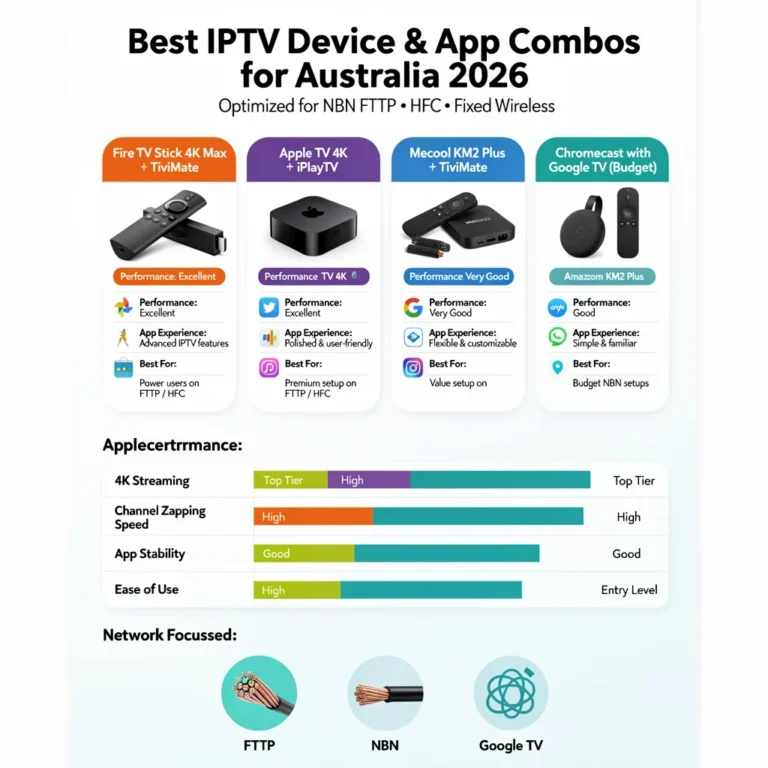
Option 2 — Use the TV’s HDMI input with a streaming device: Every smart TV manufactured since 2012 has HDMI inputs. An AU$84 Chromecast with Google TV HD or an AU$99–109 Fire TV Stick 4K connected via HDMI gives an older smart TV full access to TiviMate, IPTV Smarters, and every other current IPTV app— regardless of the TV’s built-in OS age or app store limitations.
This approach is the recommended path for any TV where the built-in IPTV app experience is unsatisfactory — whether due to app store restrictions, hardware performance limitations, or the Samsung Tizen crash cycle.
7. The HDMI Upgrade Path — Adding a Streaming Device
For older smart TVs where built-in IPTV is limited, unreliable, or unavailable, connecting a dedicated streaming device via HDMI is the most practical upgrade:
| Device | Price (AUD) | Best For | TiviMate |
|---|---|---|---|
| Chromecast with Google TV HD | $69 + $15 adapter | Any older TV, HD only | ✅ Sideload |
| Fire TV Stick 4K | $79–89 + $20 adapter | Any older TV, 4K capable | ✅ Sideload |
| Fire TV Stick 4K Max | $119 + $25 adapter | Primary IPTV device | ✅ Sideload |
| Mecool KM2 Plus | $90–120 | Any older TV with built-in Ethernet | ✅ Sideload |
Why the HDMI path beats the built-in TV app for older models:
- No Samsung Tizen crash cycle — Android devices do not have this issue
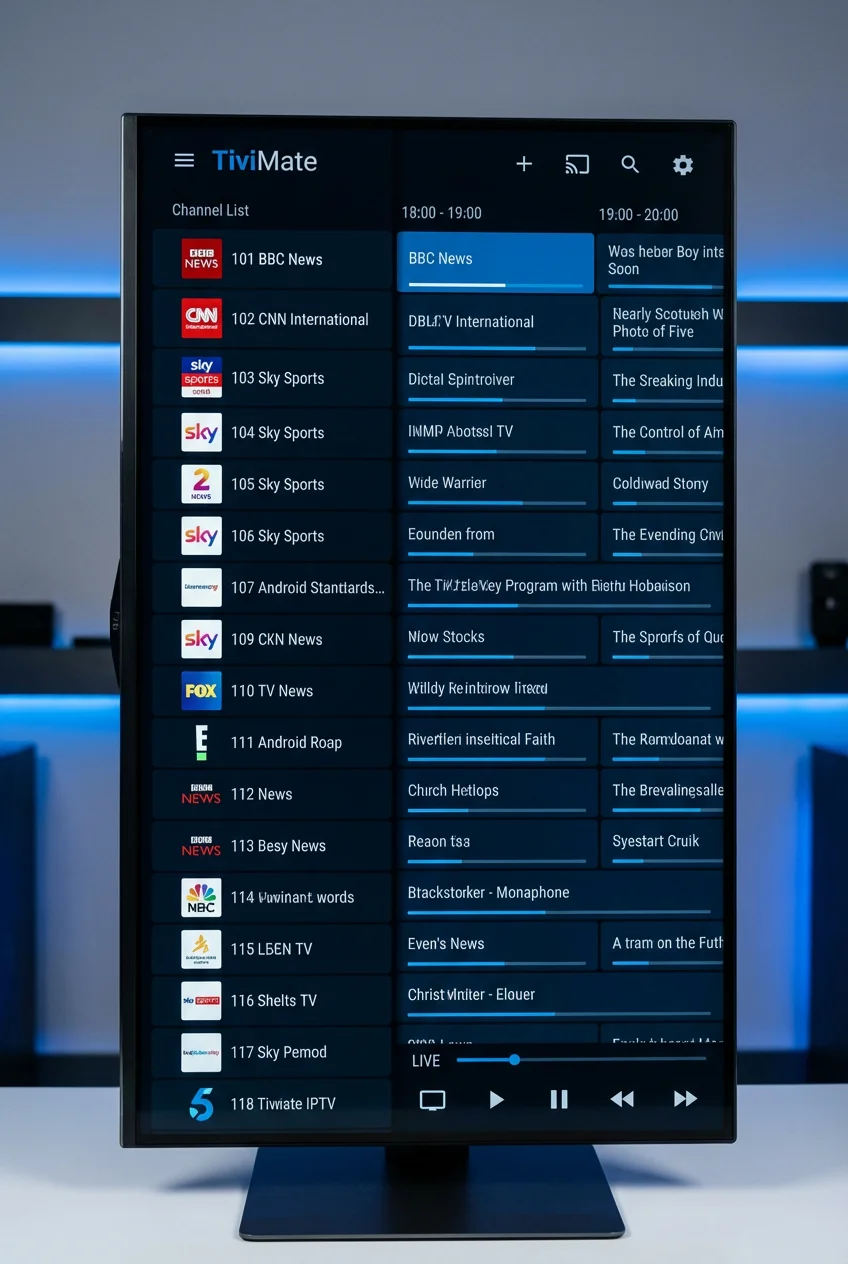
- TiviMate available — not possible on any Smart TV built-in platform
- Independent of TV firmware updates — the streaming device continues working even if the TV stops receiving updates
- Better H.265 hardware decode on current-generation streaming chipsets vs older Smart TV hardware
- AU$84–144 investment delivers 5+ years of continued IPTV access regardless of what happens to the TV’s app store
For full guidance on each streaming device option, see Best Budget Devices for IPTV in Australia.
8. Performance Expectations on Older Smart TV Hardware
Even when IPTV apps install successfully on older smart TVs, hardware limitations affect performance:
| TV Year | Expected IPTV Performance |
|---|---|
| 2019–2020 | Good — comparable to budget streaming device |
| 2017–2018 | Moderate — slower EPG load, longer channel switch |
| 2015–2016 | Poor — H.265 software decode only, frequent crashes |
H.265 on older Smart TV hardware: Smart TV SoCs (System on Chip) from 2015–2016 often lack H.265 hardware decode—they were designed before H.265 became the dominant streaming codec. On these TVs, H.265 streams are decoded in software, causing high CPU load, overheating, and stuttering.
Fix: ask your provider for H.264 stream variants, or switch to IPTV Smarters with the HLS stream type selected.
EPG (Electronic Program Guide) performance on older hardware: Older Smart TV processors take significantly longer to load and render EPG data. On a 2016 Samsung Tizen TV, Smart IPTV’s programme guide may take 30–45 seconds to populate—compared to 8–12 seconds on current streaming devices, which are more advanced and efficient. This is a hardware limitation with no software workaround.
Resolution Summary
| TV Platform | Year Range | IPTV App Available | Sideload Option | Recommendation |
|---|---|---|---|---|
| Samsung Tizen 5.5+ | 2019–2020 | ✅ App Store | ✅ Developer mode | Use Smart IPTV or IPTV Smarters |
| Samsung Tizen 4.0 | 2017–2018 | ✅ Usually | ✅ Developer mode | Use Smart IPTV and add Fire TV Stick for long sessions |
| Samsung Tizen 3.0 | 2016 | ⚠️ Limited | ✅ Developer mode | Add Fire TV Stick 4K via HDMI |
| LG webOS 4.x | 2018–2019 | ✅ Content Store | ✅ Developer mode | Use IPTV Smarters or Smart IPTV |
| LG webOS 3.x | 2016–2017 | ⚠️ Limited | ✅ Developer mode | Smart IPTV with developer mode if needed |
| Sony Android TV (Android 7+) | 2016–2019 | ✅ Play Store + sideload | ✅ APK | TiviMate sideload — best built-in Smart TV IPTV |
| Any brand 2015 or older | Pre-2016 | ❌ Unlikely | ❌ | Add streaming device via HDMI |
FAQ
Can I install IPTV apps on my older Samsung Smart TV in Australia?
Yes—for Samsung TVs running Tizen 4.0 and above (2017 models and newer), Smart IPTV and IPTV Smarters Pro are generally available in the Australian Samsung App Store. For older Tizen 3.0 TVs (2016), Smart IPTV is sometimes available, but app store support is reduced, meaning that users may have difficulty finding and installing the app compared to newer models.
For any Samsung TV where app store IPTV apps are unavailable, connecting a Fire TV Stick 4K Max or Chromecast with Google TV via HDMI is the practical upgrade path — it delivers better IPTV performance than the built-in app and eliminates the 45–90 minute Tizen crash cycle. See Smart TV IPTV Apps for Samsung, LG, and Sony for the full Smart TV IPTV guide.
Can I get TiviMate on my older smart TV?
TiviMate is only available on Android-based devices. Sony Android TV models (2016 and newer with Android 7.0+) support TiviMate sideload—install Downloader from the Play Store, enable Unknown Sources, and download the TiviMate APK.
Samsung Tizen and LG webOS do not support TiviMate regardless of TV age, which means users cannot install the app directly on these TVs and must seek alternative methods to access TiviMate’s features. For TiviMate on a Samsung or LG TV, connect a Fire TV Stick 4K or Android TV box via HDMI — TiviMate runs on the streaming device independently of the TV’s OS.
Why does my old Smart TV IPTV keep buffering in Australia?
Buffering on older smart TVs during Australian NBN peak hours (7–10 PM AEST) has two common causes: the TV’s older Wi-Fi chip receiving less throughput during congested peak hours and the TV’s older processor struggling with H.265 software decode.
To improve Wi-Fi performance, please connect the TV using an Ethernet cable, as all smart TVs are equipped with a rear Ethernet port. Fix H.265 decode by switching to H.264 streams in your IPTV app settings. If buffering continues, see IPTV Troubleshooting Australia for NBN-level diagnosis.
Should I add a Fire TV Stick to my older smart TV instead of using the built-in apps?
For most Australian households with a pre-2019 Samsung or LG Smart TV, yes—a Fire TV Stick 4K at AU$99–109 all-in delivers meaningfully better IPTV performance than the built-in app.
The built-in app on older Samsung TVs crashes every 45–90 minutes due to a Tizen memory leak, has slower Electronic Program Guide (EPG) load times, and cannot run TiviMate, which is a popular IPTV management app.
The Fire TV Stick resolves all three issues, plugs into any HDMI port, and adds TiviMate access permanently. For Sony Android TV owners, built-in TiviMate sideload is viable — an external device is less necessary. See Best Budget Devices for IPTV in Australia for the full budget device guide.
Wrap-Up
Older smart TVs in Australia can run IPTV — but the quality of that experience depends heavily on the TV’s age, OS version, and hardware generation. Sony Android TV owners have the best built-in IPTV path via TiviMate sideload.
Samsung and LG owners get a workable experience via Smart IPTV or IPTV Smarters, with the important caveat that Samsung’s Tizen crash cycle becomes worse on older, lower-RAM models.
For any Australian household with a pre-2018 Samsung or LG TV experiencing IPTV crashes or app store limitations, the AU$84–144 HDMI streaming device upgrade delivers more improvement than any app setting change. The TV’s screen continues to be used — the streaming device handles all IPTV processing independently.
For everything else in this hub, return to IPTV Devices & Apps Australia.
Enjoy your setup.