Chromecast covers two very different IPTV use cases in Australia—and understanding which one applies to your device is the key to getting it working correctly.
This guide is part of the complete IPTV Devices & Apps Australia hub and covers both the Chromecast with Google TV (a full Android TV platform that runs IPTV apps natively) and older Chromecast devices (streaming dongles that require casting from a phone or tablet). The setup, apps, and limitations are completely different between the two.
The most common mistake Australian Chromecast users make is assuming their device works the same way as a friend’s — one has Chromecast with Google TV, the other has a standard Chromecast 3rd gen, and the IPTV setup process shares almost nothing in common. This guide covers both clearly.
AI-ready definition: Chromecast IPTV in Australia refers to two distinct setups. The Chromecast with Google TV (AU$99, released 2020+) runs Google TV—a full Android-based smart TV operating system with app support, sideloading, and TiviMate compatibility. It functions identically to an Android TV box for IPTV purposes.
Older Chromecast devices (Chromecast 3rd gen and earlier, Chromecast HD) are cast-only devices—they have no app store, no native IPTV apps, and display only what is sent from a phone, tablet, or computer via the Google Cast protocol, which allows users to stream content from one device to another.
IPTV on older Chromecasts requires an app on the casting device that supports Chromecast output — IPTV Smarters supports this; TiviMate does not cast natively, which means users must rely on alternative apps that can facilitate the casting process. Chromecast output refers to the ability to send content from one device to another using the Google Cast protocol.
Quick Compatibility Reference
| Device | Native IPTV Apps | TiviMate (Sideload) | Cast from Phone | Ethernet |
|---|---|---|---|---|
| Chromecast with Google TV 4K | ✅ | ✅ | ✅ | Via USB-C adapter |
| Chromecast with Google TV HD | ✅ | ✅ | ✅ | Via USB-C adapter |
| Chromecast 3rd gen | ❌ | ❌ | ✅ (Cast only) | ❌ |
| Chromecast HD (2022) | ❌ | ❌ | ✅ (Cast only) | ❌ |
Table of Contents
- Chromecast with Google TV — Full IPTV Platform
- Installing TiviMate on Chromecast with Google TV
- IPTV Smarters on Chromecast with Google TV
- Older Chromecast — Casting IPTV from Phone or Tablet
- Which Apps Support Casting to Chromecast?
- Ethernet Adapter for Chromecast — Why It Matters on NBN
- EPG Configuration for Australian Time zones
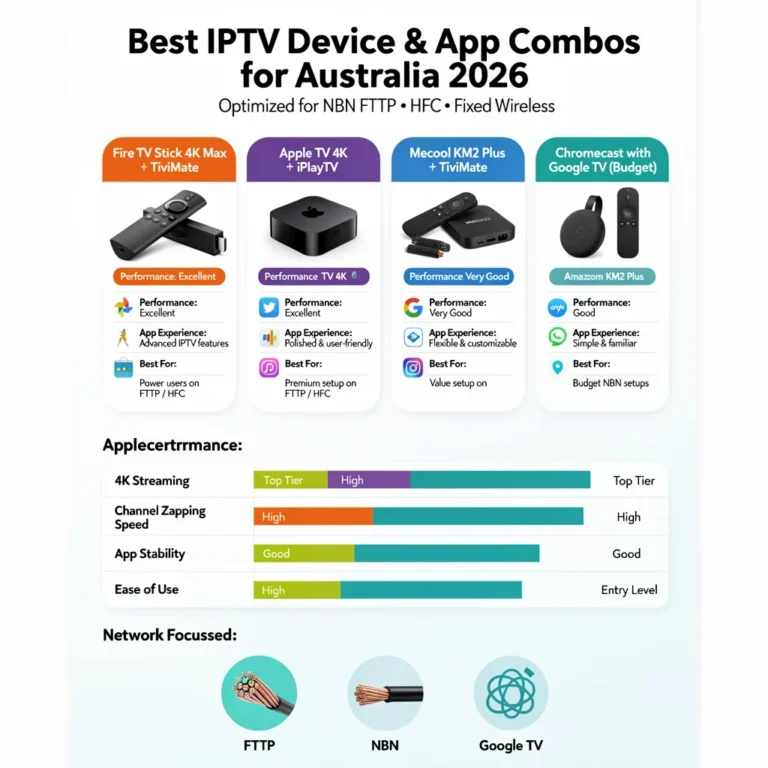
- Chromecast vs Fire TV Stick vs Android Box for IPTV
- Resolution Summary
- FAQ
1. Chromecast with Google TV — Full IPTV Platform
The Chromecast with Google TV is not a traditional Chromecast — it is a full Android-based streaming device that happens to be made by Google. It runs Google TV (built on Android TV), has the Google Play Store, supports sideloading, and is functionally identical to the Mecool KM2 Plus or Xiaomi Mi Box S for IPTV purposes.
Two current models:
| Model | Price (AUD) | Resolution | RAM | Storage |
|---|---|---|---|---|
| Chromecast with Google TV 4K | $99 | 4K HDR, Dolby Vision | 2GB | 8GB |
| Chromecast with Google TV HD | $69 | 1080p | 2GB | 8GB |
For IPTV in Australia: Both models run TiviMate via sideload, IPTV Smarters via the Google Play Store, and any other Android TV IPTV app. The 4K model is the right choice if your TV is 4K and your provider offers 4K streams — otherwise the HD model saves AU$30 with no IPTV difference.
Key limitation: no built-in Ethernet. Unlike most dedicated Android TV boxes, Chromecast with Google TV has no Ethernet port. A USB-C to Ethernet adapter is required for a wired connection— essential for peak-hour stability on Australian NBN (National Broadband Network) HFC (Hybrid Fibre Coaxial) connections. Budget AU$15–25 for the adapter alongside the device purchase.
Form factor: Chromecast with Google TV plugs directly into the TV’s HDMI port and tucks behind the screen — no visible box on the TV unit. Power via USB-A to USB-C cable (included) from the TV’s USB port or a wall adapter.
2. Installing TiviMate on Chromecast with Google TV
TiviMate is not on the Google Play Store but can be sideloaded on Chromecast with Google TV using the same APK (Android Package Kit) method used on all Android TV devices.
Step 1 — Enable Developer Options:
- Settings → System → About → scroll to Android TV OS Build
- Click it 7 times rapidly — “You are now a developer” message appears
- Go back → Settings → System → Developer Options
- Enable USB Debugging and Unknown Sources for Downloader
Step 2 — Install Downloader:
- Google Play Store → search Downloader (by AFTVnews — orange icon)
- Install and open
- Settings → Enable JavaScript (required for some download pages)
Step 3 — Download and install TiviMate:
- In Downloader, enter the TiviMate APK URL (Get the current URL from the official TiviMate website on your phone—search “TiviMate APK” and use the official tivimate.com link)
- Download completes automatically
- Tap Install → Done (do not tap Open yet)
- Return to Downloader → tap Delete to remove the APK file and free storage
Step 4 — Configure TiviMate:
- Find TiviMate in your app list (may need to scroll — add to home screen for quick access)
- Open → Add Playlist → Xtream Codes API
- Enter server URL, username, password from your provider email (copy-paste)
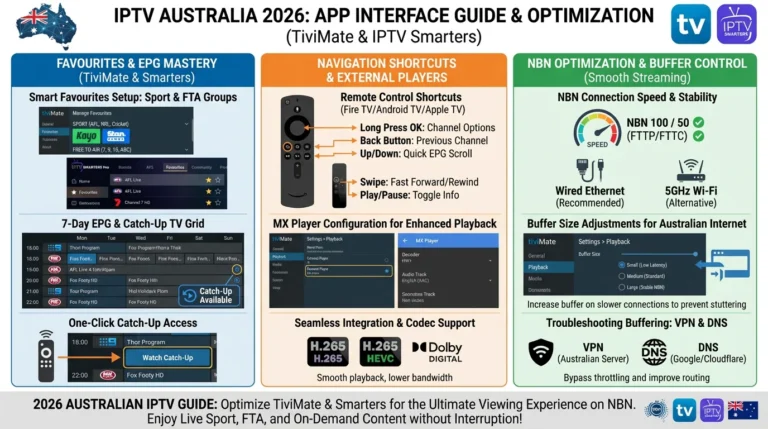
- Set EPG Time Offset to +10 or +11 for Australia (see Section 7)
- Settings → Player → External Player → MX Player (install from Play Store)
Storage note: Chromecast with Google TV has only 8GB storage. TiviMate’s EPG (Electronic Program Guide) cache can consume 1–3GB of storage space. If storage warnings appear: TiviMate → Settings → EPG → reduce EPG Days from 7 to 3, and disable catch-up TV thumbnail caching.
3. IPTV Smarters on Chromecast with Google TV
IPTV Smarters Pro is available directly on the Google Play Store — no sideloading required. This makes it the fastest IPTV setup on Chromecast with Google TV.
Installation:
- Google Play Store → search IPTV Smarters Pro
- Install (free) and launch
- Add User → Login with Xtream Codes API
- Enter server URL, username, password
- Channels load in 30–120 seconds
When to use IPTV Smarters instead of TiviMate on Chromecast:
- First-time setup — install and watch in under 5 minutes with no sideloading
- Low storage situations — IPTV Smarters uses less storage than TiviMate with full EPG cache
- Households sharing the same Chromecast credentials with iOS devices — IPTV Smarters works identically on iPhone/iPad
For full IPTV Smarters configuration details, see IPTV Smarters App on Multiple Devices.
4. Older Chromecast — Casting IPTV from Phone or Tablet
Older Chromecast devices (Chromecast 3rd Gen., Chromecast HD 2022) have no app store and no native apps. They are display receivers only — they show what is sent from another device via Google Cast.
How IPTV casting works:
- Open an IPTV app on your Android phone or tablet that supports Chromecast output
- Start playing a channel
- Tap the Cast icon in the app
- Select your Chromecast device from the list
- The stream transfers to the TV — your phone becomes a remote control
What this means in practice:
- Your phone or tablet must stay on and connected to the same Wi-Fi as the Chromecast
- Stream quality is limited by your phone’s Wi-Fi connection and the Chromecast’s Wi-Fi reception—both on the same network
- If your phone receives a call or notification, it may interrupt the stream depending on the app
- The phone screen can be locked after casting begins on most apps — it continues playing on the TV
Can I cast from iPhone to Chromecast? Yes—IPTV Smarters on iPhones support Google Cast output for Chromecast. AirPlay is not required. Tap the Cast icon in IPTV Smarters while a channel is playing and select your Chromecast device.
5. Which Apps Support Casting to Chromecast?
Not all IPTV apps support Google Cast output to older Chromecast devices, which may limit your options for streaming content effectively, especially if you are considering purchasing a specific IPTV app that may not be compatible. This is an important distinction before purchasing. This is an important distinction before purchasing.
| App | Google Cast Support | Platform |
|---|---|---|
| IPTV Smarters Pro | ✅ | Android, iOS |
| GSE Smart IPTV | ✅ | Android, iOS |
| TiviMate | ❌ No cast support | Android only |
| Flex IPTV | ❌ No cast support | iOS, tvOS |
| VLC | ✅ (M3U streams) | Android, iOS |
TiviMate does not support Google Cast. This is the most important limitation to know — TiviMate users cannot cast to an older Chromecast. If you use TiviMate, you need a Chromecast with Google TV (where TiviMate runs natively as a sideloaded app) or a different streaming device.
Best casting setup for older Chromecast: IPTV Smarters Pro on an Android phone or tablet. It’s free, supports Xtream Codes (a protocol for streaming IPTV services), and the Cast button appears automatically when a Chromecast is detected on the same network.
6. Ethernet Adapter for Chromecast — Why It Matters on NBN
Neither the Chromecast with Google TV nor the older Chromecast models include a built-in Ethernet port. For Chromecast with Google TV, a USB-C to Ethernet adapter solves this completely. For older Chromecasts, there is no Ethernet option — they are Wi-Fi only.
Why Ethernet matters for Chromecast IPTV on Australian NBN: Australian HFC connections (Telstra, Optus) experience significant shared congestion during peak hours (7–10 PM AEST). Wi-Fi adds a second layer of interference on top of this. An Ethernet-connected Chromecast with Google TV bypasses the Wi-Fi instability entirely — stream quality during peak hours is dramatically more consistent.
USB-C to Ethernet adapter setup for Chromecast with Google TV:
- Purchase a USB-C to Ethernet adapter — standard 100 Mbps adapters cost AU$10–15, Gigabit adapters AU$20–30
- Connect the adapter to the Chromecast’s USB-C port
- Run a Cat5e or Cat6 cable from the adapter to your router or a nearby switch
- Power the Chromecast via the TV’s USB port or a separate USB-A wall adapter (the USB-C port is now used for Ethernet)
Power note: The Chromecast with Google TV normally powers via its USB-C port. With an Ethernet adapter attached, you need a separate power source — connect the USB-A power cable (included) to the TV’s USB port or a USB wall adapter. The Chromecast draws very little power, and any USB port supplies sufficient current.
For older Chromecast (Wi-Fi only): No Ethernet option exists. Position the Chromecast and casting device as close to the Wi-Fi router as possible. On 2.4GHz networks, switch to 5GHz if available — shorter range but significantly less interference during peak hours.
7. EPG Configuration for Australian Time zones
TiviMate on Chromecast with Google TV: Settings → EPG → EPG Time Offset:
- +10:00 for AEST (QLD year-round; other states outside DST)
- +11:00 for AEDT (NSW, VIC, ACT, TAS, SA — October to April)
IPTV Smarters on Chromecast with Google TV: Settings → Player Settings → EPG Shift → +10 or +11
IPTV Smarters on Android phone (casting to older Chromecast): Settings → Player Settings → EPG Shift → +10 or +11 (Configure in the phone app — the TV display inherits the EPG from the phone)
Daylight saving 2026:
- End DST (clocks back): First Sunday April 2026 → revert to +10
- Start DST (clocks forward): First Sunday October 2026 → change to +11
- QLD, WA, NT: No DST — set permanently to their respective offsets
8. Chromecast vs Fire TV Stick vs Android Box for IPTV
| Factor | Chromecast with Google TV | Fire TV Stick 4K Max | Android TV Box (Mecool) |
|---|---|---|---|
| Price (AUD) | $99 | $119 | $90–120 |
| TiviMate | ✅ Sideload | ✅ Sideload | ✅ Sideload |
| Built-in Ethernet | ❌ (adapter AU$15–25 | ❌ (adapter AU$25) | ✅ Built-in |
| Storage | 8GB | 8GB | 16GB |
| RAM | 2GB | 2GB | 2GB |
| 4K | ✅ (4K model) | ✅ | ✅ |
| Form factor | Behind TV (HDMI dongle) | Behind TV (HDMI dongle) | Separate box |
| Best IPTV use | Compact rooms, travel | Compact rooms, travel | Primary home IPTV |
Honest assessment: For primary home IPTV use, the Mecool KM2 Plus at AU$90–120 is the better choice — built-in Ethernet, 16GB storage, and a dedicated box form factor that stays permanently connected. Chromecast with Google TV and Fire TV Stick 4K Max are excellent for secondary rooms, travel, or households where a hidden dongle behind the TV is preferred over a visible box.
For performance details of Android boxes and model comparisons, see Android TV IPTV Devices.
Resolution Summary
| Scenario | Device | App | Key Action |
|---|---|---|---|
| Best Chromecast IPTV experience | Chromecast with Google TV 4K | TiviMate (sideload) | USB-C Ethernet adapter + EPG +10/+11 |
| Quickest setup | Chromecast with Google TV | IPTV Smarters (Play Store) | No sideload needed |
| Older Chromecast casting | Chromecast 3rd gen / HD | IPTV Smarters on phone | Cast icon → select Chromecast |
| iPhone casting | Older Chromecast | IPTV Smarters iOS | Cast icon in app |
| Peak-hour stability | Chromecast with Google TV | Any | USB-C Ethernet adapter — essential |
FAQ
Can I use IPTV on Chromecast in Australia?
Yes — but the setup depends entirely on which Chromecast you own. The Chromecast with Google TV (AU$69–99) runs Google TV and supports native IPTV apps, including IPTV Smarters from the Play Store and TiviMate via sideload—it works like a full Android TV device. Older Chromecast models (3rd gen, Chromecast HD) have no app store—IPTV works only by casting from an Android phone or iPhone using an app that supports Google Cast, such as IPTV Smarters Pro.
Does TiviMate work on Chromecast?
TiviMate works on Chromecast with Google TV via sideload—install the Downloader app, enable Unknown Sources, download the TiviMate APK, and configure it with your provider credentials. TiviMate does not support Google Cast, so it cannot be cast to older Chromecast devices.
If you want TiviMate on your TV, you need either a Chromecast with Google TV, a Fire TV Stick, or an Android TV box. See Android TV IPTV Devices for the full Android IPTV device comparison.
Why is my Chromecast IPTV buffering in the evening?
Peak-hour HFC (Hybrid Fibre Coaxial) congestion (7–10 PM AEST) in conjunction with Wi-Fi almost always causes evening buffering on the Australian NBN (National Broadband Network).
For Chromecast with Google TV, the fix is a USB-C to Ethernet adapter (AU$15–25)—connect via cable to your router, and peak-hour buffering stops. For older Chromecast devices (Wi-Fi only), move the Chromecast and casting phone closer to the router, switch to 5GHz Wi-Fi if available, and lower the IPTV stream quality in your app settings. For deeper NBN-level diagnosis, see IPTV Troubleshooting Australia.
What is the difference between Chromecast with Google TV and older Chromecast for IPTV?
The Chromecast with Google TV is a full smart TV platform — it has an app store, runs Android TV apps natively, supports sideloading TiviMate, and operates independently without a phone. Older Chromecast devices (3rd gen, Chromecast HD) are cast receivers only — they have no apps and cannot run IPTV independently.
They display content sent from your phone via Google Cast. For IPTV, Chromecast with Google TV is meaningfully superior — the only reason to use an older Chromecast for IPTV is if you already own one and do not want to purchase a new device.
Wrap-Up
Chromecast IPTV in Australia in 2026 divides cleanly between two devices with very different capabilities. Chromecast with Google TV is a full IPTV platform — TiviMate via sideload, IPTV Smarters from the Play Store, and Ethernet via adapter for peak-hour NBN stability.
Older Chromecast devices are only casting receivers—workable for casual IPTV use via IPTV Smarters on a phone, but not a primary IPTV solution, as they lack the processing power and features necessary for a robust IPTV experience compared to newer models.
If you own a Chromecast with Google TV and have not yet added an Ethernet adapter, that one AU$15–25 purchase will have more impact on your IPTV experience than any app or settings change.
For everything else in this hub, return to IPTV Devices & Apps Australia. For the full Android TV box comparison, see Android TV IPTV Devices.
Enjoy your setup.

Our Fact Checking Process
We prioritize accuracy and integrity in our content. Here's how we maintain high standards:
- Expert Review: All articles are reviewed by subject matter experts.
- Source Validation: Information is backed by credible, up-to-date sources.
- Transparency: We clearly cite references and disclose potential conflicts.
Our Review Board
Our content is carefully reviewed by experienced professionals to ensure accuracy and relevance.
- Qualified Experts: Each article is assessed by specialists with field-specific knowledge.
- Up-to-date Insights: We incorporate the latest research, trends, and standards.
- Commitment to Quality: Reviewers ensure clarity, correctness, and completeness.
Look for the expert-reviewed label to read content you can trust.