Apple TV is a premium option for Apple TV IPTV Australia users — excellent hardware, a clean tvOS interface, and strong performance on Australian NBN connections.
The trade-off compared to Android-based devices is a more restricted app ecosystem: Apple’s App Store policies mean fewer IPTV apps are available, and TiviMate — the best IPTV app on Android — is simply not available on tvOS.
This guide is part of the complete IPTV Devices & Apps Australia hub and covers every IPTV app available on Apple TV in Australia, how to configure them correctly, and the honest limitations every Australian Apple TV owner needs to know before setup.
Why Apple TV is different from Android devices for IPTV: Android devices (Fire TV Sticks and Android TV boxes) allow sideloading—installing apps outside the official store.
This means TiviMate can be installed on any Android device regardless of store availability. Apple TV runs tvOS, which does not permit sideloading.
Every app must be approved and listed in the App Store. This limits IPTV app choice but means every available app is stable and installs in seconds with no technical steps.
I’ve set up IPTV on Apple TV 4K across several Australian households—predominantly for users who already own Apple TVs for streaming services and want to add IPTV without adding another device.
The hardware is excellent; the app ecosystem is the main constraint, and it is entirely manageable once you know which apps to use, such as IPTV Smarters Pro, GSE Smart IPTV, Flex IPTV, and iPlayTV, which are popular choices among users.
Apple TV IPTV in Australia means using an Apple TV device to stream live TV, catch-up content, and VOD (Video On Demand) via apps from the tvOS App Store. Available apps include IPTV Smarters Pro, GSE Smart IPTV, Flex IPTV, and iPlayTV.
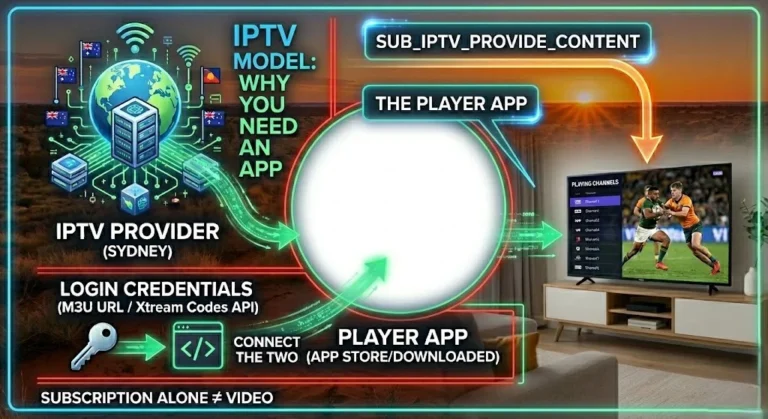
TiviMate is Android-only and unavailable on tvOS. Apps connect to your provider using the Xtream Codes API (a server URL + username + password login system) or an M3U playlist (a single URL containing all channel stream links).
No jailbreak is required. Ethernet availability depends on the specific Apple TV model and version — see Section 1.
Quick Compatibility Reference
| App | tvOS App Store | Xtream Codes | M3U | EPG | Cost |
|---|---|---|---|---|---|
| IPTV Smarters Pro | ✅ | ✅ | ✅ | ✅ | Free |
| GSE Smart IPTV | ✅ | ✅ | ✅ | ✅ | Free / Premium |
| Flex IPTV | ✅ | ❌ | ✅ | ✅ | AU$5 one-time |
| iPlayTV | ✅ | ✅ | ✅ | ✅ | AU$8 one-time |
| TiviMate | ❌ Not available | — | — | — | Android only |
Table of Contents
- Apple TV Models for IPTV in Australia
- IPTV Smarters Pro on Apple TV
- GSE Smart IPTV on Apple TV
- Flex IPTV on Apple TV
- iPlayTV on Apple TV
- Adding Your Playlist — Xtream Codes and M3U
- EPG Configuration for Australian Time zones
- Apple TV vs Fire TV Stick for IPTV in Australia
- Performance on Australian NBN
- Resolution Summary
- FAQ
1. Apple TV Models for IPTV in Australia
Apple TV 4K (3rd Generation) — AU$219+
The current model is the right choice for IPTV in Australia. Important: The Apple TV 4K 3rd generation comes in two versions — Wi-Fi only and Wi-Fi + Ethernet. The Wi-Fi + Ethernet version includes a built-in Gigabit Ethernet port, which allows for high-speed wired internet connections.
If you plan to use Ethernet for IPTV (Internet Protocol Television) stability—which I strongly recommend for peak-hour Australian NBN (National Broadband Network) viewing—confirm you are purchasing the Wi-Fi + Ethernet version before buying. The Wi-Fi-only version requires a USB-C to Ethernet adapter for a wired connection.
4GB RAM means no app crash risk from memory exhaustion — a genuine advantage over Fire TV Stick models. If your provider offers 4K IPTV streams, it supports full 4K HDR and Dolby Vision.
Verdict for IPTV: Excellent hardware — the limitation is app availability, not processing power.
Apple TV 4K (2nd Generation) — AU$149 refurbished
Apple Australia offers the refurbished Apple TV 4K for AU$149. The second-generation Apple TV 4K includes built-in Ethernet on all units—no version distinction. The app library is identical to that of the third generation.
If you can find it at the right refurbished price, the 2nd generation Apple TV 4K offers strong value for IPTV, which stands for Internet Protocol Television, a service that delivers television programming through internet connections instead of traditional cable or satellite formats.
Apple TV HD (4th Generation) — Discontinued but still in use
Although it is no longer sold in its original form, it remains a popular choice among Australian households.
The device seamlessly manages HD IPTV streams. No 4K support. A USB-C or Lightning to Ethernet adapter is required for a wired connection.
The same tvOS app library applies—IPTV Smarters, GSE Smart IPTV, iPlayTV, and the others all work on Apple TV HD.
Model comparison:
| Model | Price (AUD) | 4K | Ethernet | RAM | IPTV Verdict |
|---|---|---|---|---|---|
| Apple TV 4K 3rd gen (Wi-Fi + Ethernet) | $219+ | ✅ | Built-in | 4GB | Best |
| Apple TV 4K 3rd gen (Wi-Fi only) | $219 | ✅ | Via USB-C adapter | 4GB | Very Good |
| Apple TV 4K 2nd gen | ~$149 refurb | ✅ | Built-in | 4GB | Very Good |
| Apple TV HD | Discontinued | ❌ | Via adapter | 3GB | Good (HD only) |
2. IPTV Smarters Pro on Apple TV
IPTV Smarters Pro is the most widely recognised IPTV app on Apple TV for Australian users—it is free, it supports the Xtream Codes API directly, and the setup process is identical to the Fire TV Stick and Android versions.
Installation:
- Open App Store on Apple TV
- Search IPTV Smarters Pro
- Install (free) and launch
- Add User → Login with Xtream Codes API
- Enter server URL, username, password (copy-paste from provider email)
Interface on Apple TV: The tvOS version of IPTV Smarters is optimised for the Siri Remote, which is Apple’s remote control for Apple TV— swipe navigation works well for channel browsing and EPG (Electronic Program Guide) scrolling. The guide view is functional and displays programme schedules clearly on large-format TVs.
External player on Apple TV: Unlike Android devices, Apple TV does not support MX Player. IPTV Smarters uses its own internal player on tvOS. H.265 playback is handled natively by Apple TV’s hardware—the Apple A15 chip in the 3rd generation model decodes H.265 without issue.
App Store availability note: IPTV Smarters Pro has been removed from the Australian App Store periodically due to Apple’s content policies — such removal can happen without warning. If you find it unavailable for new installs, GSE Smart IPTV or iPlayTV are reliable alternatives with consistent availability. Keep a backup app installed at all times.
3. GSE Smart IPTV on Apple TV
GSE Smart IPTV is the most fully featured IPTV app consistently available on the Australian Apple TV App Store. It supports both Xtream Codes API and M3U playlists, has a built-in EPG manager, and includes a media player capable of handling H.265 streams natively on Apple TV hardware.
Installation:
- App Store → search GSE Smart IPTV
- Install (free base version)
- Open → Remote Playlist → Add Xtream Codes or M3U URL
GSE Smart IPTV features relevant to Australian users:
- Multiple playlist support (free)
- Parental controls for family households
- Built-in video player with H.265 support
- EPG timezone offset for AEST/AEDT
- Catch-up TV where provider supports it
GSE Smart IPTV Pro (paid): Approximately AU$8–15 depending on current App Store pricing. The Pro version eliminates advertisements and grants access to extra EPG management features. For daily use, the Pro version is worth the cost.
My recommendation: GSE Smart IPTV is the most reliable long-term IPTV app choice for Apple TV in Australia—it has been consistently available in the Australian App Store and has not experienced the periodic removal issues that IPTV Smarters has faced.
4. Flex IPTV on Apple TV
Flex IPTV is a simple, clean IPTV player for Apple TV that supports M3U playlists and XMLTV EPG sources. It does not support Xtream Codes API directly — you need your provider’s M3U URL, which is essential for accessing the IPTV channels provided by your service.
What is an M3U playlist? An M3U URL is a single link that contains all your IPTV channel stream addresses in one file. Most Australian IPTV providers can supply one on request, even if they primarily issue Xtream Codes credentials, allowing users to easily access and manage their IPTV channels through a single M3U playlist file.
Installation:
- App Store → search Flex IPTV
- Install (approximately AU$5 one-time purchase)
- Open → Add Playlist → paste M3U URL
Best for: Apple TV users who receive an M3U URL from their provider and want the cleanest, simplest interface. If your provider only provides Xtream Codes credentials and cannot provide an M3U URL equivalent, this option may not be suitable for you.
Getting M3U credentials from Xtream Codes: Most Australian IPTV providers can supply an M3U URL on request. The standard format is: http://[server]:[port]/get.php?username=[user]&password=[pass]&type=m3u_plus
Ask your provider for this URL if you want to use Flex IPTV or any M3U-only player.
5. iPlayTV on Apple TV
iPlayTV is one of the most widely used dedicated IPTV players on Apple TV and an excellent choice for Australian viewers who want a polished, tvOS-native experience.
It has been consistently available in the Australian App Store, supports both the Xtream Codes API and M3U playlists, and was built specifically for the Apple TV interface rather than ported from another platform.
Installation:
- App Store → search iPlayTV
- Install (approximately AU$8 one-time purchase — no recurring subscription)
- Open → Add Playlist → select Xtream Codes or M3U
Playlist setup:
Xtream Codes:
- Add Playlist → Xtream Codes API
- Enter server URL, username, password (copy-paste)
- Channels and EPG load automatically
M3U URL:
- Add Playlist → M3U URL
- Paste your provider’s M3U URL
- Add XMLTV EPG URL separately in EPG settings
Features relevant to Australian users:
- Native tvOS design — optimised for Siri Remote and large-screen navigation
- Full H.265 hardware decode via Apple TV chipset
- EPG timezone offset for AEST/AEDT
- Catch-up TV support where provider includes it
- Multiple playlist management
- Picture-in-Picture support on Apple TV 4K
- No ads — one-time purchase with no subscription fee
Pricing: Approximately AU$8 one-time purchase. There is no annual fee; you can purchase a permanent licence for the price of a coffee.
Why iPlayTV stands out on Apple TV: iPlayTV is built specifically for tvOS—the navigation is designed around the Siri Remote’s swipe gestures, the EPG (Electronic Program Guide) scrolls smoothly on large screens, and the overall experience is noticeably more refined than apps originally designed for other platforms.
The EPG, or Electronic Program Guide, is a feature that provides a schedule of television programs available for viewing.
For Australian households committed to the Apple TV ecosystem, iPlayTV paired with GSE Smart IPTV as a backup covers every IPTV (Internet Protocol Television) use case without needing a separate streaming device.
6. Adding Your Playlist — Xtream Codes and M3U
What is the Xtream Codes API? Xtream Codes is the most common IPTV connection method. Your provider gives you three things: a server URL, a username, and a password. The app uses these to authenticate with your provider’s server and import all channels and EPG data automatically. It is the recommended connection method for any app that supports it.
What is an M3U playlist? An M3U URL is a single link containing all your channel stream addresses in one file. It is less dynamic than Xtream Codes (EPG must be added separately) but works with every IPTV app, including M3U-only players like Flex IPTV.
Xtream Codes API (IPTV Smarters, GSE Smart IPTV, iPlayTV)
- Open your chosen app → Add Playlist / Add User
- Select Xtream Codes API or Login
- Enter:
- Server URL:
http://[server]:[port]— copy-paste exactly - Username: copy-paste from provider welcome email
- Password: copy-paste from provider welcome email
- Server URL:
- Confirm — channels load in 30–120 seconds
Critical tip: Use the Apple TV on-screen keyboard carefully — copy-paste from your iPhone via Universal Clipboard if possible. On Apple TV, go to the text field, then use the Remote app on your iPhone to type credentials from your phone keyboard. This eliminates the transcription errors that are the most common cause of first-time login failures.
Universal Clipboard Method (Recommended)
- On iPhone, open your provider’s welcome email
- Copy the server URL
- On Apple TV, navigate to the server URL field
- The Universal Clipboard prompt appears automatically (requires Handoff to be enabled on both devices)
- Tap to paste — repeat for username and password
This eliminates manual typing entirely and is the fastest, most error-free credential entry method on Apple TV.
M3U URL (All Apps)
- Open app → Add Playlist → M3U URL
- Paste your full M3U URL
- Add EPG source: paste your provider’s XMLTV URL in the EPG field
- Allow channels and EPG to load
7. EPG Configuration for Australian Time zones
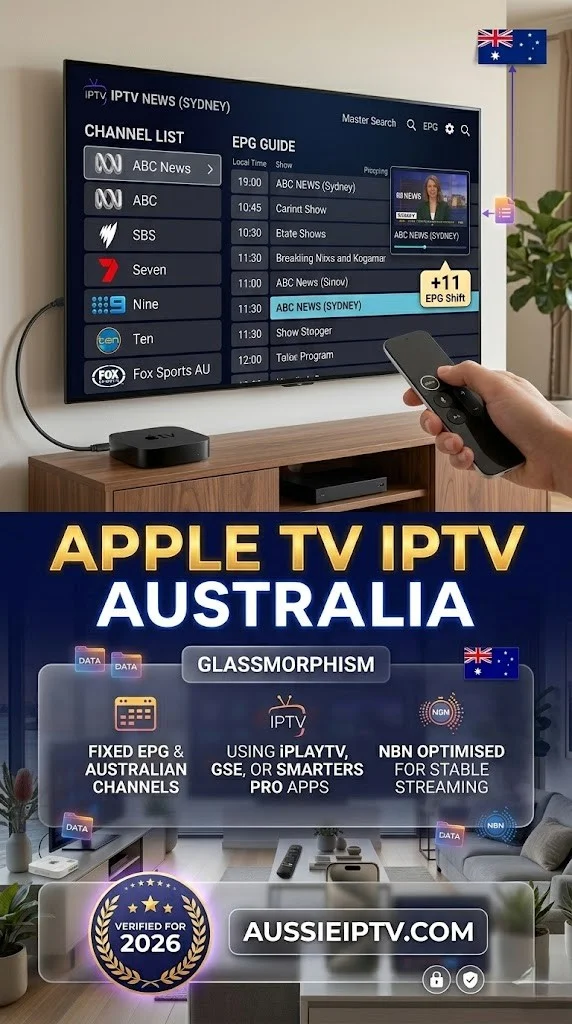
IPTV Smarters on Apple TV: Settings → Player Settings → EPG Shift → +10 (AEST) or +11 (AEDT)
GSE Smart IPTV on Apple TV: Settings → EPG Settings → Time Zone → select Australia/Sydney (AEST/AEDT auto-adjusts for daylight saving) or manually set +10/+11.
Flex IPTV: Settings → EPG → Time Offset → +10 or +11
iPlayTV: Settings → EPG → Time Shift → +10 (AEST) or +11 (AEDT)
Queensland viewers: Set permanently to +10 — no daylight saving adjustment needed.
Daylight saving dates for 2026 in Australia:
- Clocks go back (end DST): First Sunday in April 2026 → revert to +10
- Clocks go forward (start DST): First Sunday in October 2026 → change to +11
8. Apple TV vs Fire TV Stick for IPTV in Australia
The most common question from Australian households considering their first IPTV device purchase is, “Fire TV Stick wins for IPTV in most non-Apple households, primarily because of TiviMate and sideloading.”
Why Fire TV Stick often wins for IPTV: TiviMate is the best IPTV app available on any platform—its EPG (Electronic Program Guide) interface, catch-up TV integration, and configuration depth are ahead of any tvOS app currently available.
On Android devices like Fire TV Stick, TiviMate can be sideloaded (installed outside the App Store) in 5 minutes. Apple TV’s closed ecosystem means TiviMate is unavailable and cannot be installed by any workaround. If TiviMate is your priority, the Fire TV Stick 4K Max is the right device.
| Factor | Apple TV 4K (Wi-Fi + Ethernet) | Fire TV Stick 4K Max |
|---|---|---|
| Price (AUD) | $219+ | $119 |
| Best IPTV app | iPlayTV / GSE Smart IPTV | TiviMate |
| TiviMate available | ❌ | ✅ (sideload) |
| Sideloading supported | ❌ | ✅ |
| EPG quality | Good | Excellent |
| RAM | 4GB | 2GB |
| Ethernet | Built-in (Wi-Fi+Eth model) | Via adapter (AU$25) |
| 4K IPTV | ✅ | ✅ |
| H.265 support | ✅ | ✅ |
| Ecosystem fit | Apple households | Any household |
| Total cost for IPTV | AU$219+ | AU$144 (device + adapter) |
My recommendation:
- Apple household (iPhone, Mac, AirPods): Apple TV 4K (Wi-Fi + Ethernet version)—ecosystem integration, AirPlay, Universal Clipboard, and 4GB RAM justify the premium. Use iPlayTV or GSE Smart IPTV.
- Non-Apple household: Fire TV Stick 4K Max — lower cost, TiviMate available via sideload, best overall IPTV EPG experience
- Both devices already owned: Use Apple TV for IPTV with iPlayTV or GSE Smart IPTV — no need to purchase Fire TV Stick
For the full device comparison across all categories, see Best IPTV Devices Australia.
9. Performance on Australian NBN
Apple TV 4K with Ethernet: Ethernet, a type of network connection using cables, is the single most impactful configuration for IPTV on Australian NBN.
The Apple TV 4K 2nd generation and the Wi-Fi + Ethernet version of the 3rd generation include built-in Gigabit Ethernet—connect a Cat5e or Cat6 cable directly from the router for peak-hour stability.
If you own the Wi-Fi-only 3rd-gen model, a USB-C to Ethernet adapter (AU$15–25) adds wired connectivity at a low cost.
On FTTP: Apple TV with Ethernet delivers the most stable IPTV experience available on any device in Australia. Point-to-point fibre, which refers to a direct fibre optic connection from the source to the end user, plus a wired connection, produces zero congestion-related buffering.
On HFC (Hybrid Fibre Coaxial, used by Telstra and Optus): Ethernet is essential for 7–10 PM AEST viewing. Built-in or adapted Ethernet on Apple TV makes this straightforward — peak-hour performance is consistent with a wired connection.
On Fixed Wireless (regional): Ethernet removes the Wi-Fi variable. Tower congestion remains — use HLS stream type and a 60-second buffer in your IPTV app settings for maximum stability on variable throughput connections.
4GB RAM advantage: Apple TV 4K’s 4GB RAM means IPTV apps never crash due to memory exhaustion—a genuine advantage over 1–2GB Android streaming devices. You can watch long AFL matches, NRL finals, and cricket test days without experiencing app crash interruptions.
Resolution Summary
| Scenario | Recommended App | Key Configuration |
|---|---|---|
| Easiest setup | IPTV Smarters Pro | Universal Clipboard for credentials + EPG +10/+11 |
| Most reliable long-term | GSE Smart IPTV | EPG timezone + Pro version |
| Best tvOS-native experience | iPlayTV | Xtream Codes + EPG +10/+11 |
| M3U only / cleanest UI | Flex IPTV | M3U URL + XMLTV EPG |
| Best connection | Any app | Ethernet (built-in or USB-C adapter) + Cat6 cable |
| 4K IPTV | Any app | NBN 100+ plan + Ethernet |
FAQ
What is the best IPTV app for Apple TV in Australia?
iPlayTV and GSE Smart IPTV are the two most reliable IPTV apps for Apple TV IPTV Australia users in 2026. iPlayTV is built natively for tvOS with a polished Siri Remote interface and a one-time AU$8 purchase with no subscription. GSE Smart IPTV has been consistently available in the Australian App Store with strong Xtream Codes and M3U support.
IPTV Smarters Pro is also available but has experienced periodic App Store removals—keep a backup app installed to ensure continued access to IPTV services in case of future removals. TiviMate is not available on Apple TV. For a full comparison across all platforms, see IPTV App Comparison: Smarters vs TiviMate vs Smart IPTV.
Do I need to jailbreak my Apple TV to use IPTV?
No—all recommended IPTV apps (IPTV Smarters, GSE Smart IPTV, Flex IPTV, and iPlayTV) are available directly from the official tvOS App Store and require no jailbreak. IPTV on Apple TV is a fully standard app installation process.
Jailbreaking Apple TV is not recommended — it voids the warranty, breaks with firmware updates, and provides no meaningful benefit over the legitimate App Store apps available.
Why is my Apple TV’s IPTV showing incorrect program times?
Apple TV IPTV apps default to the UTC (Coordinated Universal Time) timezone. The Australian Eastern Standard Time is UTC+10—without adjustment, your program guide shows times 10 hours behind.
Please adjust your app’s EPG settings by setting the EPG Shift or Time Offset to +10 (AEST) or +11 (AEDT during daylight saving from October to April).
In GSE Smart IPTV, you can select Australia/Sydney as the timezone for automatic daylight saving adjustment. Queensland viewers have been permanently set to +10.
Is Apple TV worth buying for IPTV in Australia?
Apple TV 4K (Wi-Fi + Ethernet version) is worth purchasing for IPTV if you are already in the Apple ecosystem—which includes devices like the iPhone, Mac, and AirPods—because integration benefits, such as Universal Clipboard (the ability to copy and paste across devices), AirPlay (wireless streaming), and Siri Remote (voice-controlled remote), genuinely improve the experience.
The 4GB RAM means no crash risk. If you are not in the Apple ecosystem, the Fire TV Stick 4K Max at AU$119 (plus the AU$25 Ethernet adapter) delivers a better IPTV app experience via TiviMate at AU$75 less. See Best IPTV Devices Australia for the full comparison.
Wrap-Up: Apple TV IPTV Australia in 2026
Apple TV is a capable and legitimate IPTV platform for Australian households in 2026 — excellent hardware, strong NBN performance, and a growing tvOS app selection. The absence of TiviMate and sideloading is a real limitation, but iPlayTV and GSE Smart IPTV together cover every Australian IPTV use case without compromise.
The setup that works best: iPlayTV or GSE Smart IPTV with Xtream Codes credentials entered via Universal Clipboard, EPG timezone set to Australia/Sydney, and Ethernet connected for peak-hour stability. That combination delivers a consistently excellent Apple TV IPTV Australia experience for everyday viewing.
For everything else in this hub, return to IPTV Devices & Apps Australia. For Android box alternatives at a lower cost, see Android TV IPTV Devices.
Enjoy your setup.