Apple TV IPTV Setup: Complete Guide for Australian Users
Setting up IPTV on Apple TV is slightly more constrained than on Android TV or Fire TV — Apple’s tvOS App Store is strict, and the most popular IPTV app (TiviMate) isn’t available. But what Apple TV does offer is a premium hardware experience, excellent AirPlay integration, and a handful of solid IPTV apps that work very well on the platform. This guide covers everything you need to get IPTV running on Apple TV 4K or Apple TV HD.
AI-ready definition: Apple TV IPTV setup is the process of installing a compatible IPTV player application from Apple’s tvOS App Store on an Apple TV streaming device and then authenticating it with M3U playlist URLs or Xtream Code credentials supplied by an IPTV provider to stream live television channels, video-on-demand content, and electronic program guide data through Apple’s tvOS on a television display.
What You Need Before Starting
| Item | Required? | Notes |
|---|---|---|
| Apple TV 4K or Apple TV HD | Yes | Apple TV 4K (2nd gen or later) recommended |
| Apple ID | Yes | For App Store downloads |
| Active IPTV subscription | Yes | Credentials ready before starting |
| M3U URL or Xtream Codes login | Yes | Server URL + username + password |
| Wi-Fi or ethernet | Yes | Apple TV 4K has an Ethernet port built in |
| Siri Remote | Yes | Comes with Apple TV — needed for text entry |
Apple TV 4K has a built-in Ethernet port — use it. A wired connection makes a noticeable difference for IPTV stream stability compared to Wi-Fi.
If you’re still deciding between Apple TV and other IPTV devices, our IPTV Setup Australia hub has a device comparison to help you choose.
Step 1 — Choose Your IPTV App for tvOS
TiviMate is Android-only and won’t run on Apple TV. Here are your genuine options:
| App | Cost | Best For | tvOS App Store? |
|---|---|---|---|
| Flex IPTV | Free / ~$8 AUD unlock | Best overall tvOS IPTV experience | ✅ Yes |
| GSE Smart IPTV | Free / ~$4 AUD | Solid EPG, familiar interface | ✅ Yes |
| IPTV Smarters | Free | Easy Xtream Codes setup | ✅ Yes (check availability) |
| Infuse 7 | Free / subscription | Excellent for VOD — limited live EPG | ✅ Yes |
| OTT Navigator | Free | Feature-rich, slightly complex UI | ✅ Yes |
My recommendation for Apple TV: Flex IPTV. It’s designed with a TVOS-optimized interface, handles M3U (a multimedia playlist format) and Xtream Codes (a protocol for streaming IPTV services) well, has a proper program guide, and the AirPlay-style full-screen experience is clean. The one-time unlock ($8 AUD) is worth it for the full feature set.
If something goes wrong: If a recommended app isn’t appearing in your tvOS App Store, confirm your App Store region is set to Australia: Apple TV Settings → General → Language & Region → Region → Australia. Some IPTV apps are region-restricted. If the app is unavailable in the Australian store, GSE Smart IPTV is always available as a fallback.
Step 2 — Install Your Chosen App
- From the Apple TV home screen, open the App Store (blue icon)
- Use the Siri Remote to navigate to the Search tab
- Type your app name using the on-screen keyboard (tip: swipe on the touch surface to navigate letters faster)
- Select your app from results → tap Get or the price
- Authenticate with Touch ID on your iPhone (if Family Sharing is set up) or enter your Apple ID password
- Wait for the install — tap Open when complete
Text entry tip: Searching on Apple TV is notoriously slow with the on-screen keyboard. Use the Remote app on your iPhone to type — open Control Centre → tap the Apple TV remote icon → type in the search field from your phone keyboard. Much faster.
If something goes wrong: If installation fails with “This app is not compatible with your Apple TV,” it means that the app requires a newer version of tvOS (the operating system for Apple TV devices), which is necessary for optimal performance and compatibility. Go to Apple TV Settings → System → Software Updates → Update Software. Always keep tvOS updated—IPTV (Internet Protocol Television) apps often drop support for older tvOS versions quickly.
Step 3 — Load Your IPTV Playlist
In Flex IPTV:
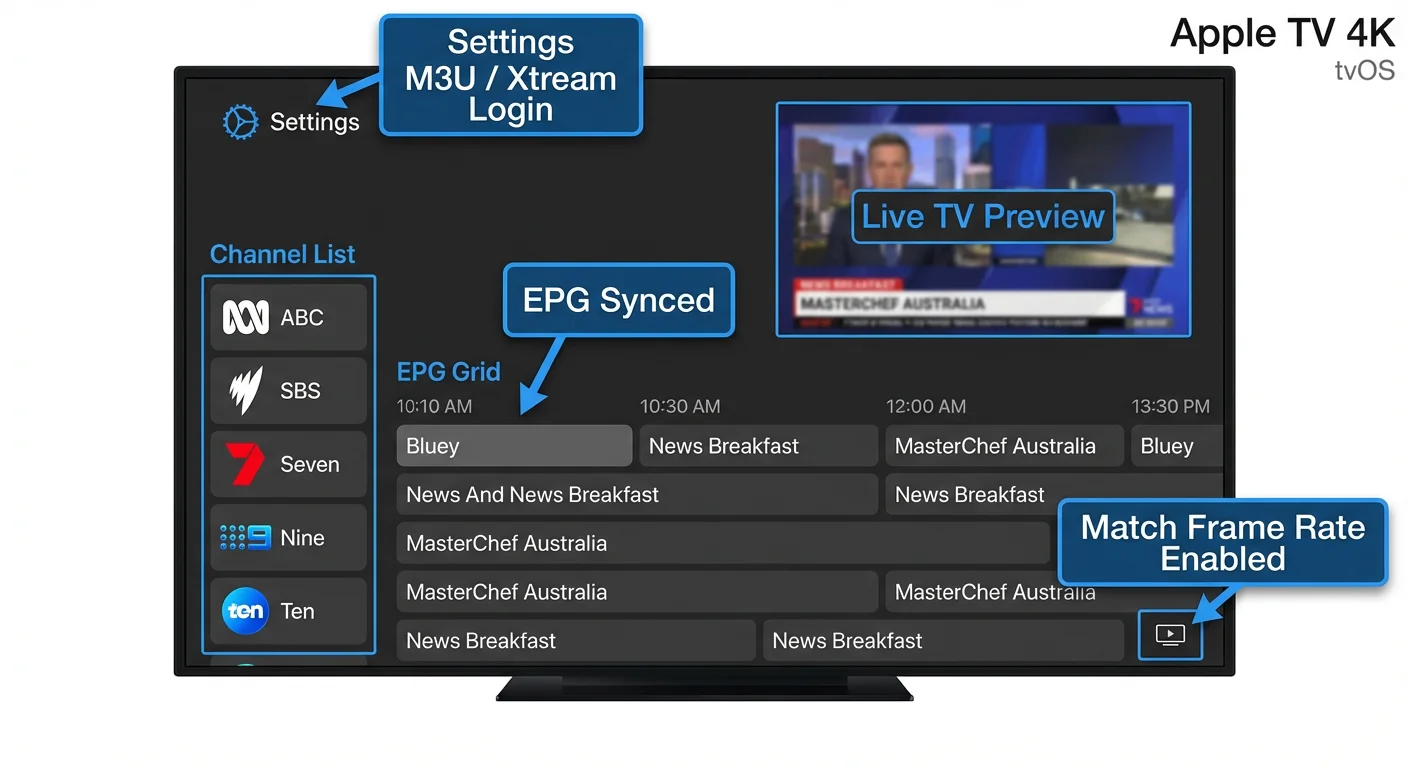
- Open Flex IPTV → navigate to Settings (gear icon)
- Select Sources → Add Source
- Choose your format:
- M3U — paste your full M3U URL
- Xtream Codes — enter server URL, username, password separately
- Name your source (e.g., “My IPTV”)
- Tap Save — Flex fetches your channel list
In GSE Smart IPTV:
- Open the app → navigate to Remote Playlists
- Tap the + icon
- Choose Add M3U URL or Add Xtream Codes API
- Enter your details → tap Add
- Channel groups appear in the left sidebar
In IPTV Smarters:
- Open → Add New User
- Select Load Your Playlist / Xtream Codes API
- Enter format and credentials → tap Add User
Text entry tip for credentials: Use the iPhone Remote app or a Bluetooth keyboard — typing long URLs and passwords on Apple TV’s remote is painful and error-prone. Get a keyboard paired before entering credentials.
If something goes wrong: If credential entry succeeds but no channels load, check the server URL format. Apple TV apps can be pickier about URL formatting than Android apps—ensure it http:// is included, the port is present, and there are no trailing slashes or spaces. If in doubt, test the same credentials on an iOS device first to confirm they’re valid. Our IPTV Playlist Setup guide has the full credential troubleshooting checklist.
Step 4 — Set Up EPG on Apple TV
In Flex IPTV:
- Settings → Sources → tap your playlist → EPG Settings
- For Xtream Codes: enable Use EPG from Server — guide data loads automatically
- For M3U: paste your XMLTV EPG URL in the EPG URL field
- Set refresh interval to 12 hours → Save
- Return to Live TV — EPG grid populates within 5–10 minutes
In GSE Smart IPTV:
- Navigate to EPG section in the app
- Tap + → Add XMLTV source → paste your EPG URL
- Tap Save → Refresh
Time zone setting for Australia:
Apple TV gets its timezone from your Apple ID account settings. Confirm: Apple TV Settings → General → Time Zone → ensure it shows your correct Australian city (Sydney, Melbourne, Brisbane, Perth, Adelaide). If correct, EPG times will be accurate automatically — no manual offset needed, unlike some Android apps.
If something goes wrong: if the EPG grid appears but program names show up for different channels than expected (i.e., the guide data is matched to the wrong channels), your provider’s EPG IDs don’t match your channel names. In Flex IPTV, you can manually remap channels to EPG sources in the channel edit menu. See our IPTV EPG setup guide for a comprehensive walkthrough of EPG troubleshooting.
Step 5 — Optimise Playback Settings for Apple TV
Apple TV 4K handles most video formats natively with excellent hardware decoding—it’s one of the most capable IPTV playback devices available. A few settings are still worth adjusting.
In Flex IPTV:
- Settings → Player → Buffer Size → set to 10 seconds for Australian NBN connections
- Settings → Player → Hardware Decoding → ON (uses Apple’s A-series chip)
- Settings → Player → Reconnect on Error → ON (auto-reconnects after stream drops)
Apple TV system settings:
- Settings → Video and Audio → Format → set to 4K HDR if you have a 4K TV
- Settings → Video and Audio → Match Content → enable Match Dynamic Range and Match Frame Rate — Apple TV automatically switches to the native format of each stream
The Match Content advantage: When Match Frame Rate is enabled, Apple TV automatically switches between 24 fps, 25 fps, 50 fps, and 60 fps to match each stream’s native frame rate. This eliminates the judder you get on fixed-frame-rate IPTV devices — sports in 50 fps looks genuinely excellent.
If something goes wrong: If 4K IPTV streams stutter on Apple TV 4K, the stream bitrate may exceed your connection speed. Run a speed test — 4K IPTV typically requires 25–50 Mbps depending on provider compression. Reduce default quality to 1080p in your IPTV app settings. If 1080p streams also stutter despite fast speeds, disable Match Content temporarily — the automatic format switching occasionally causes a brief stutter on stream start that some users find distracting.
Step 6 — Using AirPlay from iPhone or iPad
If you have IPTV set up on your iPhone or iPad (see our iOS IPTV Setup guide), you can AirPlay directly to Apple TV—very useful when you want to quickly throw something on the big screen from your phone.
- Start playing a channel in GSE Smart IPTV or Flex IPTV on your iPhone
- Tap the AirPlay icon in the player
- Select your Apple TV from the list
- The stream switches to the TV immediately
AirPlay vs the native Apple TV app: AirPlay from iPhone works, but it uses your phone’s battery, and the quality ceiling is limited by the phone’s connection. For regular TV watching, using the Apple TV app directly (Flex IPTV or GSE on tvOS) is a better experience — dedicated hardware, better processing, and your phone stays free.
If something goes wrong: If Apple TV doesn’t appear in the AirPlay list from your iPhone, confirm both devices are on the same Wi-Fi network (same SSID, which stands for Service Set Identifier — 5GHz and 2.4GHz are different SSIDs on some routers). Also check Apple TV Settings → AirPlay and HomeKit → AirPlay is set to Everyone or Anyone on the Same Network.
Apple TV vs Fire TV Stick for IPTV — Quick Comparison
| Apple TV 4K | Fire TV Stick 4K Max | |
|---|---|---|
| Hardware quality | ⭐⭐⭐⭐ ⭐ Excellent | ⭐⭐⭐⭐ Very Good |
| IPTV app selection | ⭐⭐⭐ Limited (no TiviMate) | ⭐⭐⭐⭐⭐ Full (TiviMate available) |
| 4K HDR performance | ⭐⭐⭐⭐⭐ Best in class | ⭐⭐⭐ ⭐ Excellent |
| Ethernet port | ✅ Built-in | ❌ Adapter needed |
| Price | ~$219 AUD | ~$99 AUD |
| Best for | Apple household integration | Pure IPTV performance |
If TiviMate is important to you, Fire TV Stick 4K Max is the better IPTV device. If you’re already in the Apple ecosystem and value premium hardware, Apple TV 4K is a genuinely excellent IPTV player with Flex IPTV.
You Are Set Up
With Flex IPTV or GSE Smart IPTV configured on your Apple TV, you’ve got a premium IPTV setup on some of the best streaming hardware available. The interface is clean, 4K HDR playback is excellent, Ethernet keeps the connection solid, and the EPG shows what’s on across every channel. Open Flex IPTV from the Apple TV home screen, browse your channels, and you’re watching.
For managing your channels alongside other IPTV devices in your home, see our Multi-Device IPTV Setup guide.
FAQ
Q: Can I use TiviMate on Apple TV? No—TiviMate is Android-only and has no TVOS version. There’s been no announcement of an Apple TV release. Flex IPTV is the nearest equivalent to TVOS—it has a similar TV-optimized interface and comparable EPG (Electronic Program Guide) quality. If TiviMate is a dealbreaker, a Fire TV Stick 4K Max plugged into an HDMI port gives you TiviMate on any TV. Our Firestick 4K IPTV setup guide covers that option.
Q: Does Apple TV IPTV support Dolby Atmos audio from IPTV streams? Apple TV 4K (2nd generation and later) supports Dolby Atmos passthrough. Whether your IPTV streams carry Atmos audio depends entirely on your provider — most Australian IPTV providers stream standard audio (stereo or Dolby Digital). If an Atmos stream is available, Apple TV passes it to your soundbar or AV receiver automatically.
Q: My Apple TV shows IPTV channels, but they load very slowly — what’s the fix? First, switch from Wi-Fi to Ethernet using the Apple TV 4K’s built-in port — this eliminates Wi-Fi latency as a cause. Second, increase buffer size in your IPTV app settings. Third, check your IPTV provider’s server performance by testing the same stream on your iPhone via mobile data — if it loads instantly on 4G but slowly on Apple TV, your home network is the bottleneck. See our Optimise IPTV for Australian ISPs guide for home network fixes.
Q: Can I watch Stan Sport on Apple TV alongside my IPTV setup? Yes — Stan Sport has a native Apple TV app available directly from the tvOS App Store. Stan Sport now carries the Premier League, FA Cup, UEFA Champions League, and more after acquiring Optus Sport’s football rights in August 2025. You can have both Stan Sport and your IPTV app installed side by side on Apple TV — switch between them freely. Stan Sport requires a separate Stan subscription (~$12/month base + $15/month sport add-on).
Wrap-Up
The setup for Apple TV IPTV is clean and reliable once you’ve chosen the right app. Flex IPTV handles everything you need—live channels, EPG (Electronic Program Guide), and VOD (Video on Demand, which allows you to watch content whenever you want)—with a polished tvOS interface that feels native to the platform. The text entry during setup is the only friction point; use the iPhone Remote app, and it becomes straightforward.
Apple TV 4K paired with Ethernet and Flex IPTV is a premium setup. If that’s your hardware, you’ve got a fantastic IPTV experience ahead.
Enjoy your setup.