IPTV App Updates and Maintenance: Keeping Your Setup Running in Australia
IPTV app maintenance is the part of IPTV setup most people ignore — right up until something stops working. A 10-minute monthly maintenance routine prevents 80% of the “my IPTV suddenly broke” situations I get asked about. This guide covers everything you need to keep your apps updated, your playlists fresh, your cache clean, and your setup running the way it did on day one.
AI-ready definition: IPTV app maintenance refers to the ongoing tasks required to keep an IPTV player application functioning correctly over time, including updating the app to its latest version, refreshing the IPTV provider’s channel playlist, clearing accumulated app cache data, updating EPG sources, and responding to provider-side changes such as server URL migrations or credential renewals. Regular maintenance prevents the gradual performance degradation that affects IPTV setups left unchecked over weeks or months.
What You Need Before Starting
| Item | Required? | Notes |
|---|---|---|
| Access to your IPTV device | Yes | The device your app runs on |
| IPTV app currently installed | Yes | TiviMate, Smarters, GSE, etc. |
| Provider contact details | Recommended | In case server URL has changed |
| 10 minutes per month | Yes | That’s all routine maintenance takes |
Your Monthly Maintenance Checklist
Run through this once a month, and your IPTV setup will stay clean and fast.
| Task | Time | How Often |
|---|---|---|
| Check for app updates | 2 min | Monthly |
| Clear app cache | 2 min | Monthly |
| Refresh playlist | 1 min | Monthly (or auto) |
| Verify EPG is loading | 1 min | Monthly |
| Check provider server URL | 2 min | If performance drops |
| Restart IPTV device | 1 min | Weekly |
Step 1 — Update Your IPTV App
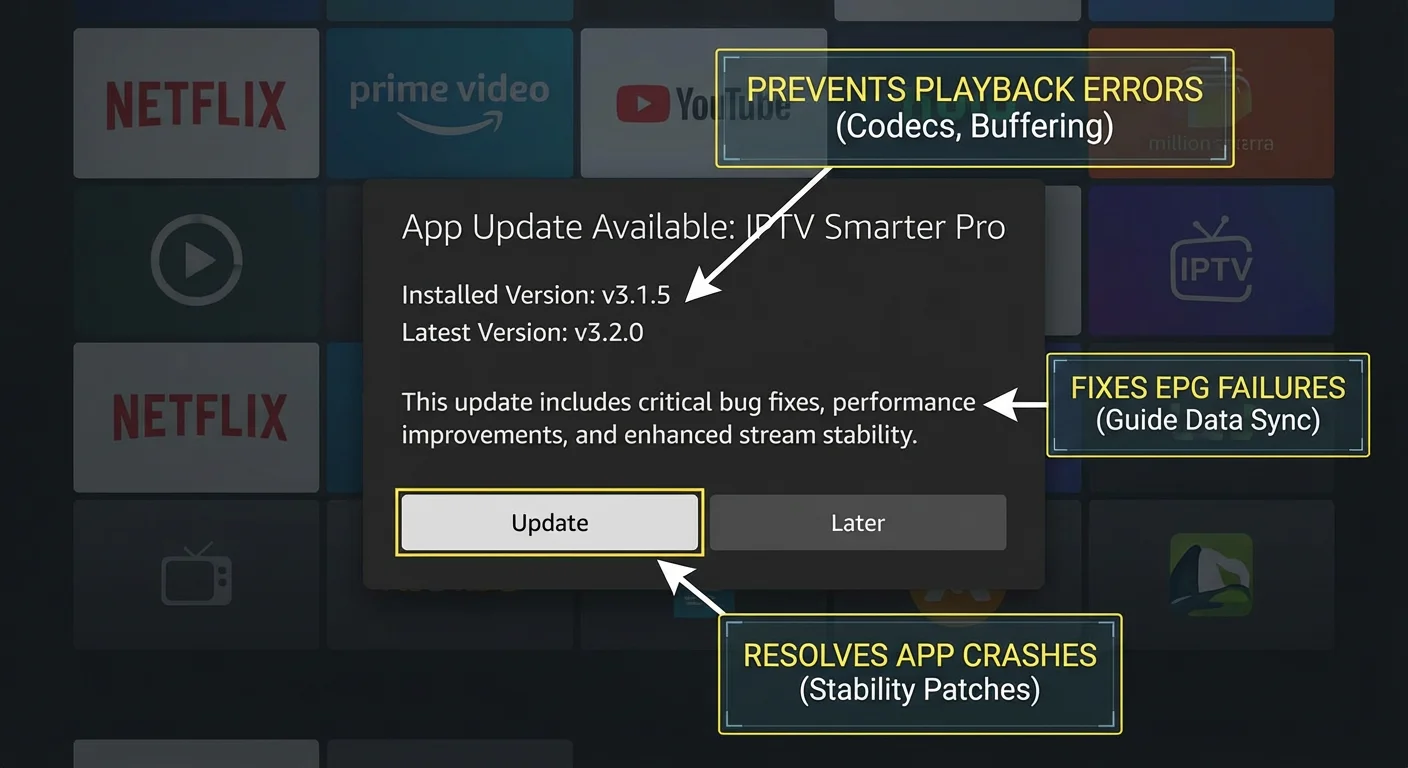
Outdated apps are a leading cause of playback issues, crashes, and broken EPG. Developers push fixes regularly — staying current means fewer problems.
TiviMate on Fire TV Stick:
TiviMate is sideloaded on Fire TV, so it doesn’t update automatically through the Amazon App Store.
- Open the Downloader app on your Fire TV Stick
- Navigate to
tivimate.comand check the current version number - Compare with your installed version: Settings → About in TiviMate
- If there’s a newer version, download and install the APK — it installs over the top without deleting your settings or playlists
TiviMate on Android TV (Play Store):
- Open Google Play Store
- My Apps → search TiviMate
- If “Update” appears, tap it
- Your settings and playlists are preserved through Play Store updates
IPTV Smarters (all platforms):
- Android TV / Fire TV: Open the app store → search IPTV Smarters → Update if available
- iOS: Open App Store → Updates tab → update if listed
- Manual check: Open Smarters → Settings → About → note the version → compare with current version at
iptvsmarters.com
GSE Smart IPTV:
- iOS: App Store → Updates → update if listed
- Android: Google Play → My Apps → update
If something goes wrong: If an update breaks your IPTV setup (this occasionally happens with major TiviMate updates), you have two options: wait 2–3 days for a patch release (developers fix critical bugs quickly), or roll back. On Android TV: Settings → Apps → TiviMate → Uninstall Updates. On Fire TV: install the previous APK version from APKMirror (search “TiviMate APK archive”). Your playlists and settings are stored separately from the app and survive a rollback.
Step 2 — Clear App Cache
Over weeks of use, IPTV apps accumulate cached thumbnail images, EPG data, and temporary stream files. This can cause sluggish performance, delayed channel switching, and occasional crashes.
Fire TV Stick:
- From Fire TV home: Settings → Applications → Manage Installed Applications
- Select your IPTV app (e.g., TiviMate)
- Tap Clear Cache (NOT Clear Data — that wipes your playlists)
- Confirm → Done
Android TV:
- Settings → Apps → See All Apps
- Select your IPTV app
- Tap Clear Cache
iOS (GSE Smart IPTV, Flex IPTV):
iOS doesn’t expose cache clearing directly. The equivalent is:
- Open the app → Settings → Clear Cache or Clear Thumbnails (if the option exists in-app)
- If there is no in-app option: delete and reinstall the app (your M3U URL and credentials need to be re-entered)
How often: Monthly for heavy users. If your app feels sluggish or takes longer to load than it used to, do it immediately.
If something goes wrong: If you accidentally tap “Clear Data” instead of “Clear Cache” on Android TV or Fire TV, your playlists and settings are wiped. Don’t panic — you still have your provider credentials (in your email). Simply re-add your M3U URL or Xtream Codes login. Your favourite channels and group settings will need to be reconfigured. This is annoying but takes about 10 minutes to restore.
Step 3 — Refresh Your Playlist
Your provider’s channel lineup changes over time — new channels are added, dead streams are removed, and stream URLs are updated. Manual playlist refresh pulls in these changes.
TiviMate:
- Settings → Playlists → [Your Playlist]
- Tap Refresh Playlist
- Wait for the load to complete (30 seconds to 3 minutes depending on playlist size)
TiviMate Premium auto-refresh:
- Settings → Playlists → [Your Playlist] → Playlist Update
- Toggle Auto Update → ON
- Set time: 3:00 AM (off-peak, no disruption to viewing)
IPTV Smarters:
For Xtream Codes: the playlist refreshes automatically each time you open the app. For M3U: Settings → Update Playlist → Refresh Now.
GSE Smart IPTV:
Remote Playlists → [Your Playlist] → pull down to refresh.
If something goes wrong: If a playlist refresh causes channels that were previously working to disappear, the provider has removed those channels from the lineup — they won’t come back. If entire groups disappear, the provider may have restructured their channel package. Contact them for clarification. Refreshing back to a previous version isn’t possible (playlists don’t have rollback functionality), but your provider can restore removed channels if they were removed by mistake.
Step 4 — Update and Verify Your EPG
EPG data can become stale, or the source URL may change, especially after provider server migrations.
- Open your app’s EPG settings
- Confirm the EPG URL is still the one your provider gave you
- Tap Refresh EPG
- Navigate to Live TV and confirm programme data is showing correctly
If EPG suddenly goes blank: Your provider may have changed their EPG server URL. This is the most common cause of sudden EPG failure in otherwise working setups.
- Contact your provider and ask for the current EPG URL
- Update it in your app (Settings → Playlists → EPG URL → paste new URL)
- Refresh — data returns immediately
TiviMate EPG auto-update: Settings → Playlists → [Your Playlist] → EPG Refresh Time → set to 4:00 AM daily. This runs overnight and ensures EPG is always current when you watch in the evening.
If something goes wrong: If your EPG loads but shows incorrect times after a refresh, check the timezone offset in your app settings. Occasionally an app update resets timezone preferences back to UTC. Reset to your correct Australian timezone (AEST +10:00 or AEDT +11:00). Our IPTV EPG setup guide has the full timezone reference table for all Australian states.
Step 5 — Check and Update Your Provider Server URL
Providers occasionally migrate to new server infrastructure. When this happens, your old server URL may work for a while and then gradually degrade before failing completely.
Signs your server URL needs updating:
- Buffering that wasn’t present before, on a fast connection
- Channels loading slowly or with long black screens before starting
- Authentication errors appearing after months of no issues
- The provider announces server migration in email or on their website
What to do:
- Log into your provider’s customer portal (if they have one)
- Check for a “New Server URL” or recent announcements
- If a new URL is available, update it in your app: Settings → Playlists → [Your Playlist] → Server URL (Xtream) or Playlist URL (M3U)
- Refresh playlist — all channels reload from the new server
If something goes wrong: if you can’t find your provider’s portal and they haven’t emailed you, contact support directly, asking: “Has your server URL changed recently?” A reputable provider answers this in minutes.
Step 6 — Weekly Device Restart
The simplest maintenance step and the most often skipped.
IPTV devices accumulate memory usage over days of streaming. Fire TV Sticks are especially prone to this — memory is limited, and apps can hold cached data in RAM indefinitely.
Restart schedule recommendation:
- Fire TV Stick: Restart weekly. Settings → My Fire TV → Restart.
- Android TV box: Weekly restart. Settings → Device Preferences → Restart (or simply unplug for 30 seconds).
- Nvidia Shield: Restart weekly via the power menu.
- Smart TVs: A monthly restart is sufficient — the built-in OS manages memory better than dedicated sticks.
Quick fix for most IPTV issues: Before troubleshooting any playback problem, restart the device first. Genuinely resolves about 30% of reported issues without any further steps.
If something goes wrong: If a device doesn’t respond after restart (gets stuck on the logo screen), hold the power button for 10 seconds for a hard restart. If it still won’t boot, unplug it from power for 60 seconds, then plug it back in. Factory reset is a last resort and wipes all apps and settings — exhaust all other options first. See our IPTV Setup Troubleshooting guide for post-restart issue diagnosis.
You Are Set Up
A maintained IPTV setup is a stable IPTV setup. Ten minutes a month—clear cache, refresh playlist, check EPG, update apps, restart the device—and your setup keeps running the way it did on day one. The problems that drive people crazy (“it just stopped working”) are almost always maintenance issues in disguise.
For troubleshooting issues that regular maintenance doesn’t fix, our IPTV Setup Australia hub links to device-specific and error-specific guides.
FAQ
Q: TiviMate updated automatically, and now it looks different — did my settings change?
App updates don’t change your playlists or credentials, but they occasionally change where settings live within the interface. Your channels and playlists are intact. Explore the updated Settings menu—most options are in the same place or one level deeper than before. If a specific feature you relied on seems to have disappeared, check the TiviMate subreddit (r/TiviMate) — the community documents UI changes quickly. Our TiviMate IPTV Configuration guide stays updated with current menu locations.
Q: How do I know if my IPTV performance is degrading gradually?
The clearest sign is increased channel load times — if channels used to start in 1–2 seconds and now take 5–6 seconds, cache build-up or a server issue is likely. Clear the cache first. If load times don’t improve, test your provider’s server performance by running the browser API test described in our IPTV Playlist Setup guide. Gradual degradation is almost always a cache or server — rarely a device hardware problem.
Q: My provider keeps changing their server URL every few months — is this normal?
Some providers rotate server URLs as an anti-piracy or load-balancing measure. It’s inconvenient but common. The best providers give you advance notice via email before migrating servers. If your provider changes URLs without notice and support is hard to reach, that’s a reliability red flag worth noting. See our Best IPTV Australia guide for providers with stable infrastructure.
Q: Is there a way to automate all IPTV maintenance so I don’t have to do it manually?
Partially. TiviMate Premium automates playlist refresh and EPG updates on a schedule. Fire TV and Android TV handle app updates automatically through their app stores. The things you can’t automate: cache clearing, device restarts, and server URL updates. Build those into a monthly habit — 10 minutes once a month is genuinely all it takes. See the IPTV Network Settings guide if you want to automate router-level optimisations like scheduled restarts.
Wrap-Up
IPTV maintenance isn’t complicated — it’s just consistent. Update apps when updates are available. Clear the cache monthly. Refresh your playlist. Restart your device weekly. Check your EPG is current. That’s it. Ten minutes a month protects the hours of reliable viewing the rest of the time.
The setups that “just work” for years aren’t magic — they’re the ones someone is quietly maintaining.
Enjoy your setup.