The single most impactful change you can make to your IPTV setup in Australia costs AU$15–25 and takes three minutes: plugging in an Ethernet cable. Wi-Fi instability contributes more to Australian IPTV buffering complaints than any other factor, including provider issues, app problems, and device hardware.
This guide is part of the complete IPTV Devices & Apps Australia hub and explains exactly why Ethernet outperforms Wi-Fi for IPTV on the Australian NBN, which devices need an adapter, and the specific situations where Wi-Fi is genuinely acceptable.
I have diagnosed hundreds of Australian IPTV buffering complaints. The resolution is Ethernet in the majority of cases — not a new provider, not a different app, not a device upgrade.
An AU$15 cable and adapter purchase resolves what seemed like a complex technical problem in under five minutes.
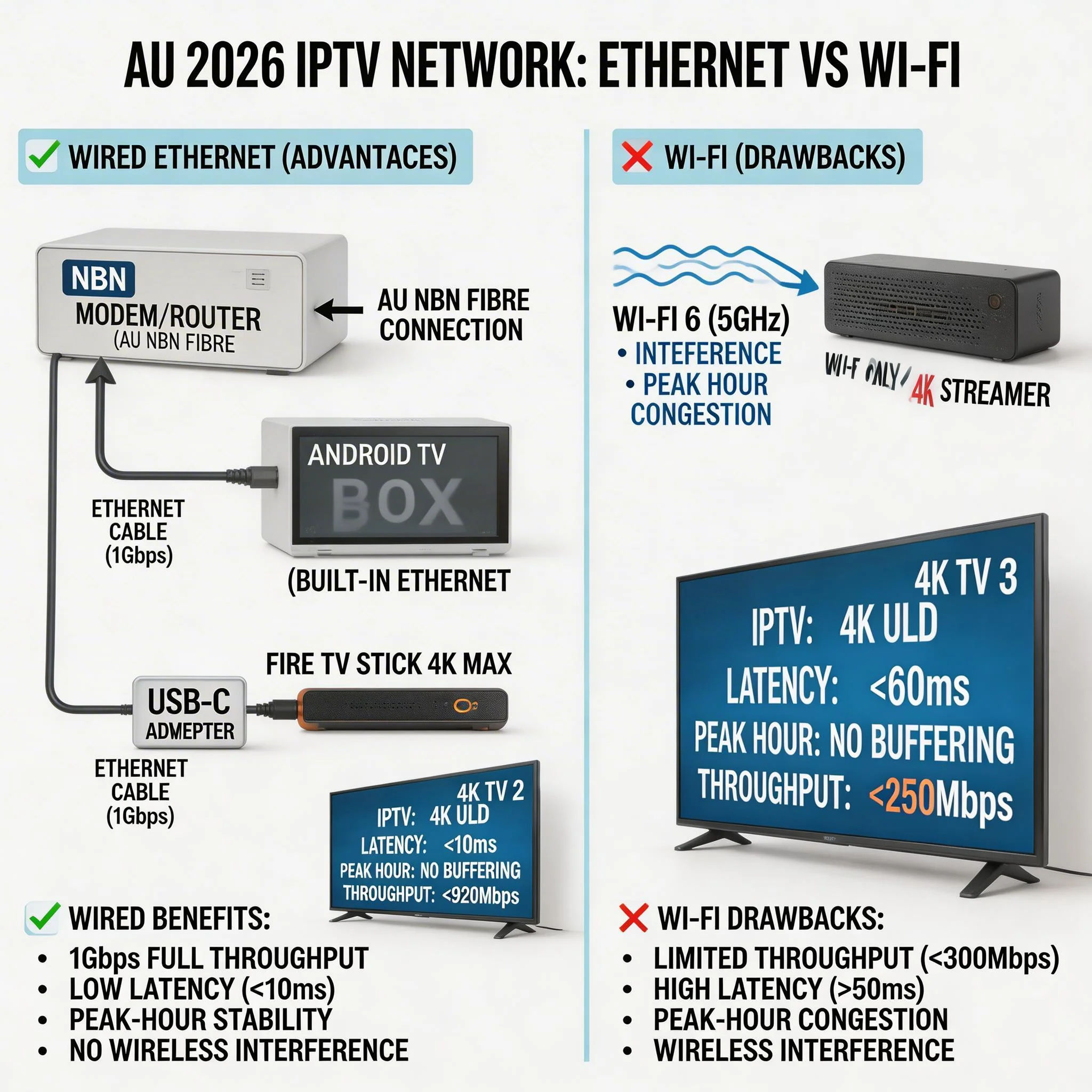
For IPTV streaming in Australia, Ethernet (wired) connections provide consistent, low-latency throughput that is not affected by Wi-Fi channel congestion, neighbouring network interference, or distance from the router.
Australian NBN HFC connections (Telstra, Optus cable network) experience significant shared node congestion during peak hours (7–10 PM AEST) — Wi-Fi adds a second layer of instability on top of this congestion. Ethernet eliminates the Wi-Fi variable, ensuring the full available NBN throughput reaches the IPTV device directly.
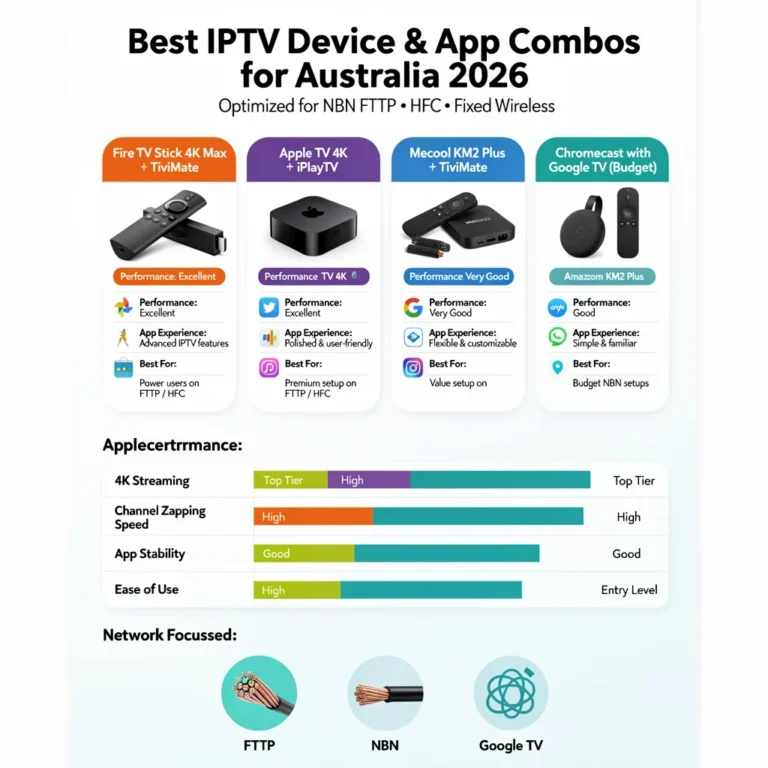
Most dedicated Android TV boxes include a built-in Ethernet port. Fire TV Stick, Chromecast with Google TV, and Apple TV 4K (Wi-Fi only model) require a USB-C or Micro-USB to Ethernet adapter.
The Short Answer
| Scenario | Use Ethernet | Use Wi-Fi |
|---|---|---|
| HFC NBN (Telstra/Optus) peak hours | ✅ Always | ❌ |
| FTTP NBN, any time | ✅ Recommended | ⚠️ Usually OK |
| Fixed Wireless NBN | ✅ Always | ❌ |
| 4K IPTV streams | ✅ Always | ❌ |
| Secondary device, casual viewing | ⚠️ Preferred | ✅ Acceptable |
| Travel / hotel / temporary setup | ❌ Not available | ✅ Only option |
| Device more than 10m from router | ✅ Always | ❌ |
Table of Contents
- Why Wi-Fi Causes IPTV Buffering on Australian NBN
- How Ethernet Fixes the Problem
- NBN Connection Type — Which Needs Ethernet Most?
- Ethernet Adapters by Device: What to Buy in Australia
- Devices With Built-in Ethernet — No Adapter Needed
- How to Connect Ethernet to Your IPTV Device
- When Wi-Fi Is Acceptable for IPTV in Australia
- Improving Wi-Fi for IPTV When Ethernet Is Not Possible
- Speed Test: Checking Your Connection from the IPTV Device
- Resolution Summary
- FAQ
1. Why Wi-Fi Causes IPTV Buffering on Australian NBN
Understanding why Wi-Fi causes IPTV buffering requires understanding two separate problems that stack on top of each other in Australian homes.
Problem 1 — NBN HFC Peak-Hour Congestion
Most Australian households connect to the NBN via HFC (hybrid fibre-coaxial)—the upgraded Telstra and Optus cable networks. HFC is a shared medium: every household in your street or apartment block connects to the same local node.
During peak hours (7–10 p.m. AEST), when the majority of your neighbours are streaming Netflix, gaming, and using IPTV simultaneously, the available bandwidth per household drops.
On an NBN 50 HFC plan, your effective speed during peak hours might be 15–25 Mbps rather than the plan maximum of 50 Mbps. A 4K IPTV stream needs 20–25 Mbps, which is the speed required for high-definition video streaming — the margin disappears entirely during peak congestion.
Problem 2 — Wi-Fi Adds Its Own Congestion
Wi-Fi in Australian residential areas—particularly apartment blocks, townhouse complexes, and suburban streets—is heavily congested. The 2.4 GHz Wi-Fi band, which is a frequency range used for wireless communication, has only three non-overlapping channels, which are specific frequency ranges that do not interfere with each other.
In a typical Australian apartment block, every unit’s Wi-Fi router is broadcasting on the same or adjacent channels, causing constant interference.
This Wi-Fi congestion is completely independent of your NBN connection. Even if your NBN is delivering 40 Mbps to your router, your IPTV device may only receive 15–20 Mbps through congested Wi-Fi—enough for HD but unreliable for 4K and prone to sudden drops during peak hours.
The result of both problems combined: During 7–10 PM AEST on HFC NBN (Hybrid Fibre Coaxial National Broadband Network) with Wi-Fi, your IPTV device may receive as little as 8–12 Mbps of usable throughput—causing buffering on HD streams and complete failure on 4K.
2. How Ethernet Fixes the Problem
Ethernet does not fix NBN HFC peak-hour congestion — your ISP controls that. What Ethernet does is eliminate the Wi-Fi variable entirely.
What changes with Ethernet:
- Your IPTV device receives all available NBN throughput directly — no Wi-Fi interference reduction
- Throughput is consistent — no fluctuations caused by neighbours’ Wi-Fi or microwave ovens
- Latency drops from 5–30 ms (Wi-Fi) to 1–3 ms (Ethernet) — important for live sport, where any delay affects viewing experience
- No signal strength degradation from distance or walls between device and router
Typical real-world improvement on Australian HFC NBN:
| Metric | Wi-Fi (peak hour) | Ethernet (peak hour) |
|---|---|---|
| Throughput consistency | Variable ±30–50% | Consistent ±5% |
| Average throughput drop vs plan speed | 30–60% | 5–15% |
| Buffering events per hour (HD stream) | 2–8 | 0–1 |
| Buffering events per hour (4K stream) | 5–15 | 0–2 |
The bottom line: Ethernet does not give you faster NBN — it gives you the full NBN speed you are already paying for, delivered reliably to your IPTV device.
3. NBN Connection Type — Which Needs Ethernet Most?
| NBN Type | Peak-Hour Impact | Ethernet Priority |
|---|---|---|
| FTTP (Fibre to the Premises) | Low — dedicated fibre | Recommended, not critical |
| HFC (Hybrid Fibre-Coaxial) | High — shared node | Critical — use Ethernet always |
| FTTC (Fibre to the Curb) | Medium — shared node segment | Strongly recommended |
| FTTN (Fibre to the Node) | Medium — copper line quality variable | Strongly recommended |
| Fixed Wireless | High tower congestion | Use Ethernet within home always |
| Satellite (Starlink) | Variable — latency dependent | Use Ethernet within home always |
FTTP households: FTTP delivers a dedicated fibre connection from the exchange to your premises— no shared node congestion. Wi-Fi IPTV on FTTP is generally stable. Ethernet is still recommended for 4K IPTV to eliminate the Wi-Fi variable, but the peak-hour urgency is lower than for HFC.
HFC households (Telstra/Optus): Ethernet is not optional for reliable evening IPTV. The shared HFC node combined with Wi-Fi interference is the primary cause of the vast majority of Australian IPTV support requests. This scenario is fixable in three minutes with a AU$15 adapter.
Fixed Wireless households (regional Australia): The tower congestion issue is outside your control — Ethernet within the home at least removes the Wi-Fi variable.
Use the HLS (HTTP Live Streaming) stream type and increase buffer size in your IPTV (Internet Protocol Television) app settings for additional stability.
4. Ethernet Adapters by Device: What to Buy in Australia
Fire TV Stick (All Models)
Fire TV Stick standard and Fire TV Stick 4K: Micro-USB port — requires Micro-USB to Ethernet adapter Fire TV Stick 4K Max (2023+): USB-C port — requires USB-C to Ethernet adapter
Recommended: Cable Matters, Uni, or UGREEN branded adapters from Amazon Australia or JB Hi-Fi. Avoid unbranded, no-name adapters — they frequently disconnect during playback.
Price range: AU$15–25
Important—power passthrough required: Fire TV Stick adapters must include a power passthrough port; the adapter takes over the device’s single USB port, so it must supply both Ethernet and power simultaneously. Always confirm the adapter includes a passthrough port before purchasing.
Chromecast with Google TV
The USB-C port requires a USB-C to Ethernet adapter (no power passthrough is needed—power via the TV’s USB port or wall adapter using the included cable).
Price range: AU$10–20
Apple TV 4K (Wi-Fi only model)
The USB-C port requires a USB-C to Ethernet adapter. The Apple USB-C to Digital AV Multiport Adapter (AU$89) includes Ethernet but is overpriced for this purpose—a standard USB-C to Ethernet adapter (AU$15–25) from UGREEN or Belkin works identically.
Xiaomi Mi Box S and Similar Android Boxes Without Ethernet
USB-C or micro-USB port—requires an appropriate adapter. Same brands as above.
Adapter Summary Table
| Device | Port | Adapter Type | Price (AUD) | Power Passthrough Needed |
|---|---|---|---|---|
| Fire TV Stick standard | Micro-USB | Micro-USB to Ethernet | $15–20 | ✅ Yes |
| Fire TV Stick 4K | Micro-USB | Micro-USB to Ethernet | $15–20 | ✅ Yes |
| Fire TV Stick 4K Max | USB-C | USB-C to Ethernet | $15–25 | ✅ Yes |
| Chromecast with Google TV | USB-C | USB-C to Ethernet | $10–20 | ❌ No |
| Apple TV 4K (Wi-Fi only) | USB-C | USB-C to Ethernet | $15–25 | ❌ No |
| Xiaomi Mi Box S | USB-C | USB-C to Ethernet | $10–20 | ❌ No |
5. Devices With Built-in Ethernet — No Adapter Needed
These devices plug directly into your router with a standard Cat5e or Cat6 cable — no adapter, no extra cost:
| Device | Ethernet Speed | Notes |
|---|---|---|
| Nvidia Shield Pro | Gigabit (1000 Mbps) | Best in class |
| Nvidia Shield (standard) | Gigabit | |
| Mecool KM2 Plus | 100 Mbps | Sufficient for all IPTV streams |
| Most dedicated Android TV boxes | 100 Mbps | Check specs before purchasing |
| Apple TV 4K 3rd gen (Wi-Fi + Ethernet) | Gigabit | Wi-Fi + Ethernet model only |
| Apple TV 4K 2nd gen | Gigabit | All units include Ethernet |
| Smart TVs (all brands) | 100 Mbps or Gigabit | Built-in on virtually all models |
100 Mbps vs Gigabit Ethernet for IPTV: 100 Mbps Ethernet (Fast Ethernet) is more than sufficient for any IPTV stream. Even a 4K HDR H.265 stream at 35 Mbps uses only 35% of 100 Mbps capacity.
Gigabit Ethernet provides no practical IPTV benefit over 100 Mbps — the difference matters for local file transfers, not streaming, as both can handle the bandwidth required for high-definition content without issues.
6. How to Connect Ethernet to Your IPTV Device
Fire TV Stick with Ethernet Adapter
- Plug the Ethernet adapter into the Fire TV Stick’s USB port
- Connect a Cat5e or Cat6 cable from the adapter to your router or wall socket
- Connect the power cable to the adapter’s passthrough port (not directly to Fire TV Stick)
- Power on — Fire TV Stick detects Ethernet automatically, no configuration needed
- Confirm: Settings → Network → shows “Ethernet”, not “Wi-Fi”
Android TV Box with Built-in Ethernet
- Connect a Cat5e or Cat6 cable from the box’s rear Ethernet port to the router.
- Power on — Ethernet detected automatically
- Confirm: Settings → Network → Ethernet connected
Chromecast with Google TV
- Connect USB-C Ethernet adapter to Chromecast
- Connect the Cat5e/Cat6 cable from the adapter to the router.
- Power Chromecast via TV’s USB port or wall adapter using included USB-A cable
- Chromecast detects Ethernet automatically on next boot
- Confirm: Settings → Network & Internet → Ethernet
Smart TV (Samsung, LG, Sony)
- Connect a Cat5e or Cat6 cable from the TV’s rear Ethernet port to the router.
- TV detects wired connection automatically
- Confirm: TV Settings → Network → Wired connection active
Cable length: Standard Cat5e or Cat6 Ethernet cables run up to 100 metres without signal degradation—more than sufficient for any home. For runs through walls or under floors, Cat6 is recommended for its better shielding. Purchase pre-made cables at JB Hi-Fi, Officeworks, or Amazon Australia in lengths from 1 m to 30 m.
7. When Wi-Fi Is Acceptable for IPTV in Australia
Ethernet is always better — but Wi-Fi is genuinely acceptable in these specific situations:
FTTP connection, device within 5 metres of router, 5 GHz band: On FTTP with a modern router and short Wi-Fi range, throughput is consistent enough for HD IPTV. While 4K streaming is not recommended, HD streaming remains reliable.
Secondary devices—mobile viewing: Phones and tablets used for IPTV in secondary rooms or while travelling cannot use Ethernet. Wi-Fi is the only option. Reduce stream quality to HD if buffering occurs.
Temporary or travel setups: hotel Wi-Fi, visiting family, or any temporary location where Ethernet is not available. Use HD quality rather than 4K and accept occasional buffering during peak hours.
Low-traffic periods: daytime viewing (10 a.m.–5 p.m.) outside peak hours avoids the worst HFC congestion. Wi-Fi IPTV during the daytime is generally stable even on HFC connections.
8. Improving Wi-Fi for IPTV When Ethernet Is Not Possible
If running an Ethernet cable is genuinely not practical, these steps improve Wi-Fi IPTV stability:
Switch to 5 GHz Wi-Fi: 5 GHz has a shorter range but significantly less interference than 2.4 GHz in apartment blocks. If your router broadcasts both bands, connect your IPTV device to the 5 GHz network. Look for the network name with “5G” or “5GHz” in your Wi-Fi list.
Position the router closer to the IPTV device; every additional metre and every wall reduces Wi-Fi throughput. If the router is across the house, consider a Wi-Fi extender or mesh node placed near the IPTV device. TP-Link Deco mesh systems (AU$150–300) are widely used in Australian homes for this purpose.
Powerline adapters—the Ethernet alternative: Powerline adapters use your home’s existing electrical wiring to carry network traffic; plug one into the wall near the router, connect it via Ethernet, plug the second near the IPTV device, and connect it via Ethernet. No cable runs required.
Effective throughput varies by home wiring quality — 100–300 Mbps is typical. JB Hi-Fi and Harvey Norman offer them for AU$80–150 per pair.
Reduce stream quality to HD: If 4K is buffering on Wi-Fi, switch to HD in your IPTV app or provider settings. An HD H.265 stream needs only 3–6 Mbps — stable on most Wi-Fi connections even during peak hours.
Change DNS settings: Settings → Network → DNS → Manual → 8.8.8.8 (Google) or 1.1.1.1 (Cloudflare). This resolves slow stream server lookup that can cause initial buffering even on fast connections.
9. Speed Test: Checking Your Connection from the IPTV Device
The most important diagnostic step for IPTV buffering is to run a speed test from the IPTV device itself, not from your phone.
Why test from the device (not phone): Your phone and IPTV device may be on different Wi-Fi bands or at different distances from the router. A 50 Mbps result on your phone tells you nothing about what the Fire TV Stick is receiving from across the room.
Speed test on Fire TV Stick: Amazon App Store → search Analiti Speed Test → install → run during peak hours (7–9 PM AEST)
Speed test on Android TV box: Google Play Store → search Speedtest by Ookla → install → run
Speed test on Apple TV: App Store → search Speedtest → install → run
What the results tell you:
| Result | Interpretation |
|---|---|
| 25+ Mbps on Ethernet (peak hour) | Connection is fine — investigate app or provider |
| 10–24 Mbps on Ethernet (peak hour) | HFC congestion — contact ISP or upgrade plan |
| Below 10 Mbps on Ethernet (peak hour) | Serious HFC congestion or modem issue — contact ISP |
| 25+ Mbps on Wi-Fi (off-peak) but buffering at peak | Switch to Ethernet — Wi-Fi congestion issue |
| Below 15 Mbps on Wi-Fi (any time) | Switch to Ethernet immediately |
For deeper NBN and IPTV diagnosis beyond speed testing, see IPTV Troubleshooting Australia.
Resolution Summary
| Device | Ethernet Status | Action Required | Cost |
|---|---|---|---|
| Nvidia Shield Pro / standard | Built-in Gigabit | Connect Cat6 cable | $0 (cable only) |
| Mecool KM2 Plus | Built-in 100 Mbps | Connect Cat5e/Cat6 cable | $0 (cable only) |
| Apple TV 4K 2nd gen | Built-in Gigabit | Connect the cable. | $0 |
| Apple TV 4K 3rd gen (Ethernet model) | Built-in Gigabit | Connect the cable. | $0 |
| Apple TV 4K 3rd gen (Wi-Fi only) | USB-C adapter | Buy USB-C to Ethernet adapter | $15–25 |
| Fire TV Stick 4K Max | USB-C adapter | Buy USB-C to Ethernet adapter with passthrough | $15–25 |
| Fire TV Stick 4K / standard | Micro-USB adapter | Buy Micro-USB to Ethernet adapter with passthrough | $15–20 |
| Chromecast with Google TV | USB-C adapter | Buy USB-C to Ethernet adapter | $10–20 |
| Xiaomi Mi Box S | USB-C adapter | Buy USB-C to Ethernet adapter | $10–20 |
| Smart TV (all brands) | Built-in | Connect the cable. | $0 |
FAQ
Why does my IPTV keep buffering in the evening in Australia?
Evening IPTV buffering in Australia is almost always caused by NBN HFC peak-hour congestion (7–10 PM AEST) combined with Wi-Fi instability.
The fix is connecting your IPTV device via Ethernet — plug a Cat5e or Cat6 cable from your router to the device (or use a USB adapter on Fire TV Stick or Chromecast).
This eliminates the Wi-Fi variable and delivers the full available NBN throughput to your device consistently. If buffering continues on Ethernet during peak hours, the issue is at the NBN node level — contact your ISP or run a speed test from the device. For full diagnosis steps, see IPTV Troubleshooting Australia.
What Ethernet adapter do I need for a Fire TV Stick in Australia?
The adapter you need depends on your Fire TV Stick model. The Fire TV Stick standard and Fire TV Stick 4K use a micro-USB port—buy a micro-USB to Ethernet adapter with power passthrough (AU$15–20). The Fire TV Stick 4K Max (2023 model) uses USB-C, so buy a USB-C to Ethernet adapter with power passthrough (AU$15–25).
The power passthrough is essential because the adapter takes over the device’s only port—it must supply both Ethernet and power simultaneously. Recommended brands: UGREEN, Cable Matters, and Uni. Available from Amazon Australia and JB Hi-Fi.
Is 5 GHz Wi-Fi good enough for IPTV in Australia?
5 GHz Wi-Fi is significantly better than 2.4 GHz for IPTV—less interference, more available channels, and higher throughput at short range. For HD IPTV during off-peak hours, 5 GHz Wi-Fi within 5–8 metres of the router is generally stable.
For 4K IPTV or peak-hour (7–10 PM AEST) viewing on HFC NBN (Hybrid Fibre Coaxial National Broadband Network), Ethernet, which is a wired networking technology, is still recommended over 5 GHz Wi-Fi — Wi-Fi interference during peak hours affects even 5 GHz networks in dense residential areas.
Does Ethernet make a real difference for IPTV on Australia’s NBN?
Yes — in Australian households experiencing IPTV buffering, switching from Wi-Fi to Ethernet resolves the issue in the majority of cases. The combination of HFC peak-hour shared node congestion and residential Wi-Fi channel saturation creates throughput drops that push IPTV streams below their minimum bitrate.
Ethernet eliminates the Wi-Fi component of this problem, delivering consistent throughput to the IPTV device regardless of neighbourhood Wi-Fi activity. The cost is AU$0 for devices with built-in Ethernet or AU$15–25 for an adapter on Fire TV Stick and Chromecast.
Wrap-Up
The Wi-Fi vs Ethernet decision for IPTV in Australia is not a close call — Ethernet wins in every scenario where it is available. The cost is negligible, the installation takes three minutes, and the improvement to peak-hour IPTV stability is immediate and significant.
If you take one action after reading this guide: buy an AU$15–25 Ethernet adapter for your Fire TV Stick or Chromecast with Google TV, connect it to your router with a Cat5e cable, and check your evening IPTV performance over the following week. The difference will be immediately apparent.
For everything else in this hub, return to IPTV Devices & Apps Australia. For a full IPTV buffering diagnosis beyond the connection fix, see IPTV Troubleshooting Australia.
Enjoy your setup.